> ## Documentation Index
> Fetch the complete documentation index at: https://www.vozo.ai/docs/llms.txt
> Use this file to discover all available pages before exploring further.
# Proofread Before Dubbing
> Review and edit speakers, original text, and translations before generating your dub.
This feature is only available on the Studio plan and above.
Before dubbing, you can optionally proofread your translation to verify accuracy, correct speakers, and assign voices before the dub is generated.
## Enable Proofreading
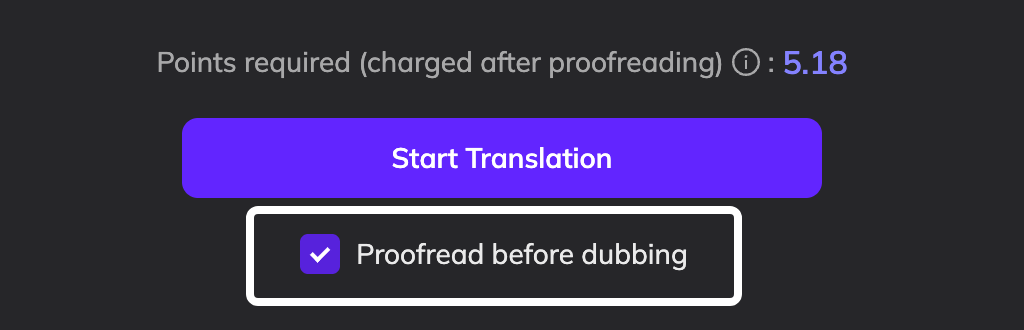
When creating a project, check **Proofread before dubbing** below the **Start Translation** button. Once translation is complete, the Proofreading Editor will open before dubbing begins.
 ## Review and Edit
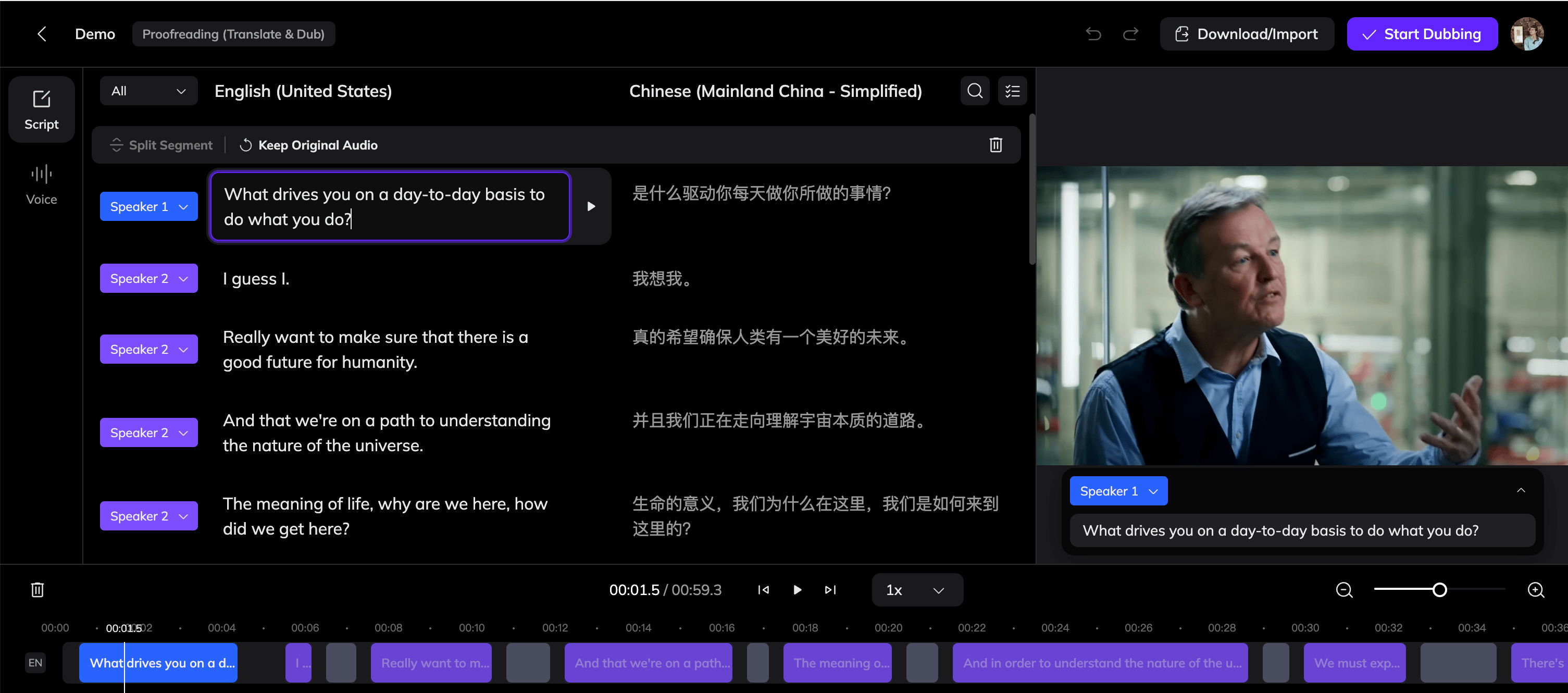
The editor displays your speakers, original text, and translated text side by side. You can:
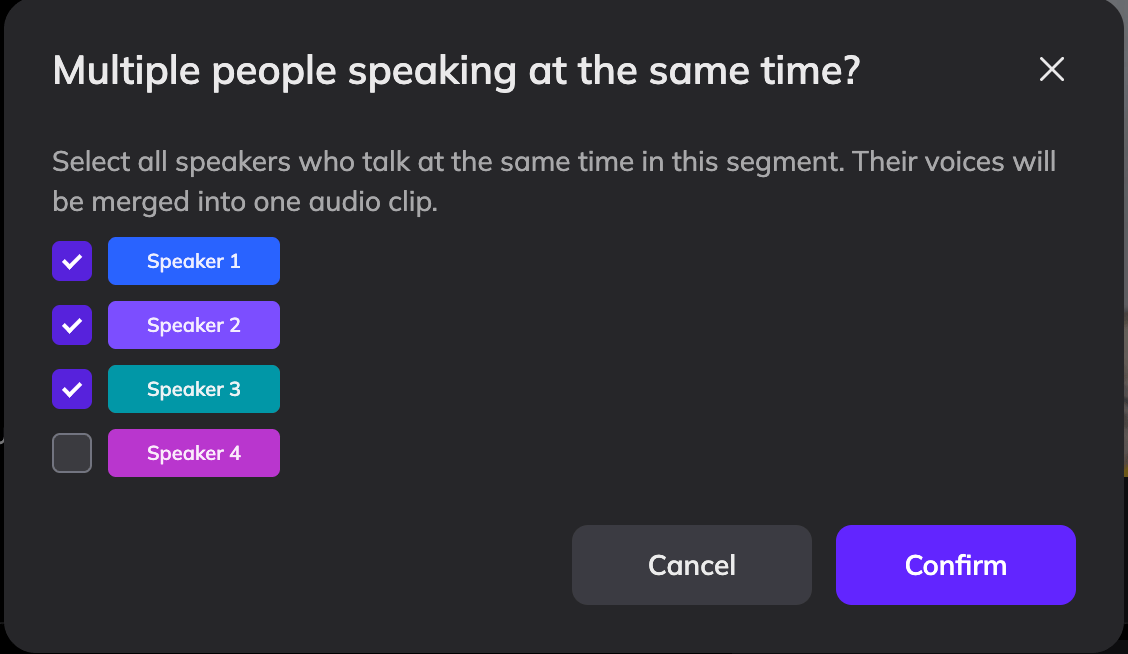
* Correct speaker labels and reassign segments to the right speaker
* Edit the original text to trigger a re-translation of that segment
* Edit the translated text directly without changing the original
## Review and Edit
The editor displays your speakers, original text, and translated text side by side. You can:
* Correct speaker labels and reassign segments to the right speaker
* Edit the original text to trigger a re-translation of that segment
* Edit the translated text directly without changing the original
 ## Speed Up Your Review
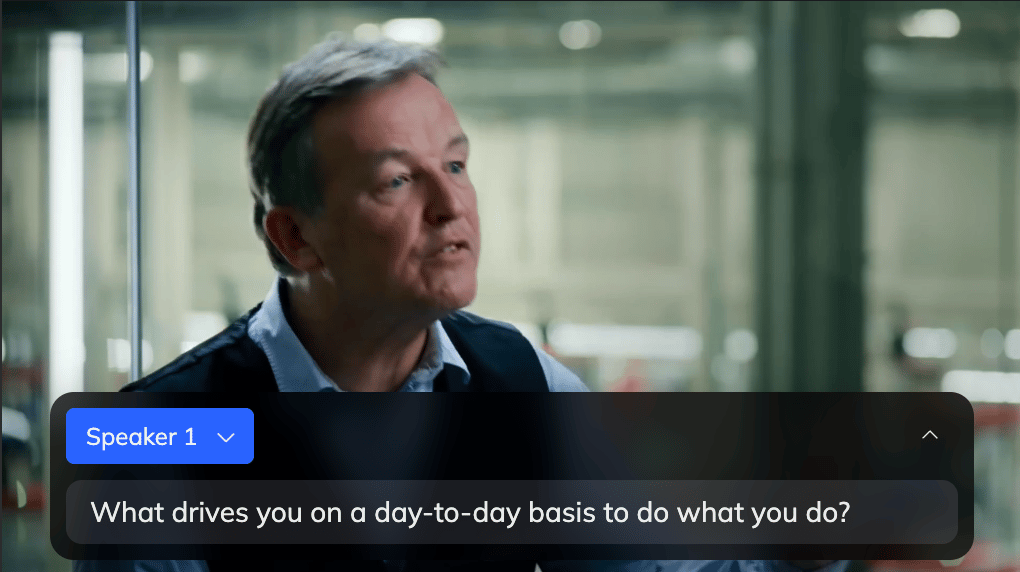
The video panel on the right shows a popover overlaid on the video, displaying the original text recognized for that moment. You can play the video directly in this panel to quickly verify the content without switching between views
## Speed Up Your Review
The video panel on the right shows a popover overlaid on the video, displaying the original text recognized for that moment. You can play the video directly in this panel to quickly verify the content without switching between views
 To proofread even faster, use the playback speed selector next to the play button at the bottom of the video panel. Options include 1.5x, 2x, and 3x.
 ## Assign Voices
Click the **Voice** tab on the left to review and update the voice assigned to each speaker. Each speaker's voice can be changed to one of the following:
* **Clone voice from original speaker** — clones the speaker's voice directly from the original video
* **Select from Voice Library** — choose an AI voice or a previously saved cloned voice from your libr
## Assign Voices
Click the **Voice** tab on the left to review and update the voice assigned to each speaker. Each speaker's voice can be changed to one of the following:
* **Clone voice from original speaker** — clones the speaker's voice directly from the original video
* **Select from Voice Library** — choose an AI voice or a previously saved cloned voice from your libr
 ## Start Dubbing
When you are satisfied with the review, click **Start Dubbing** in the top-right corner to proceed.
## Start Dubbing
When you are satisfied with the review, click **Start Dubbing** in the top-right corner to proceed.