> ## Documentation Index
> Fetch the complete documentation index at: https://www.vozo.ai/docs/llms.txt
> Use this file to discover all available pages before exploring further.
# Get Started
> Visual Translate helps you translate on-screen text in videos, such as slides and explanatory overlays, while preserving layout, style, and animations.
## What Is Visual Translate
Visual Translate translates on-screen text in videos, including slides, captions, and explanatory overlays. It focuses on visual elements rather than spoken audio.
## Create a Project
To get started, navigate to your **Dashboard** and click on **AI Translation - Visual Translate**.
Upload a video file to begin. Please make sure the video is suitable for this feature. For supported types and scenarios, see [Supported Video Types](/visual_translate/supported_types).
Before submitting the translation, configure the following settings:
1. **Original Language**: Select the language of the on-screen text in the video.
2. **Translated to**: Choose the target language.
3. **Advanced Settings** (Optional):
* **Translation Prompt**: Provide tone, style, or context to guide the translation.
* **Glossary**: Apply one or more glossaries to control term translation and consistency.
Once ready, submit the project and wait for processing to complete.
## Preview and Edit Translations
After processing, you’ll enter the editor to review and edit the results.
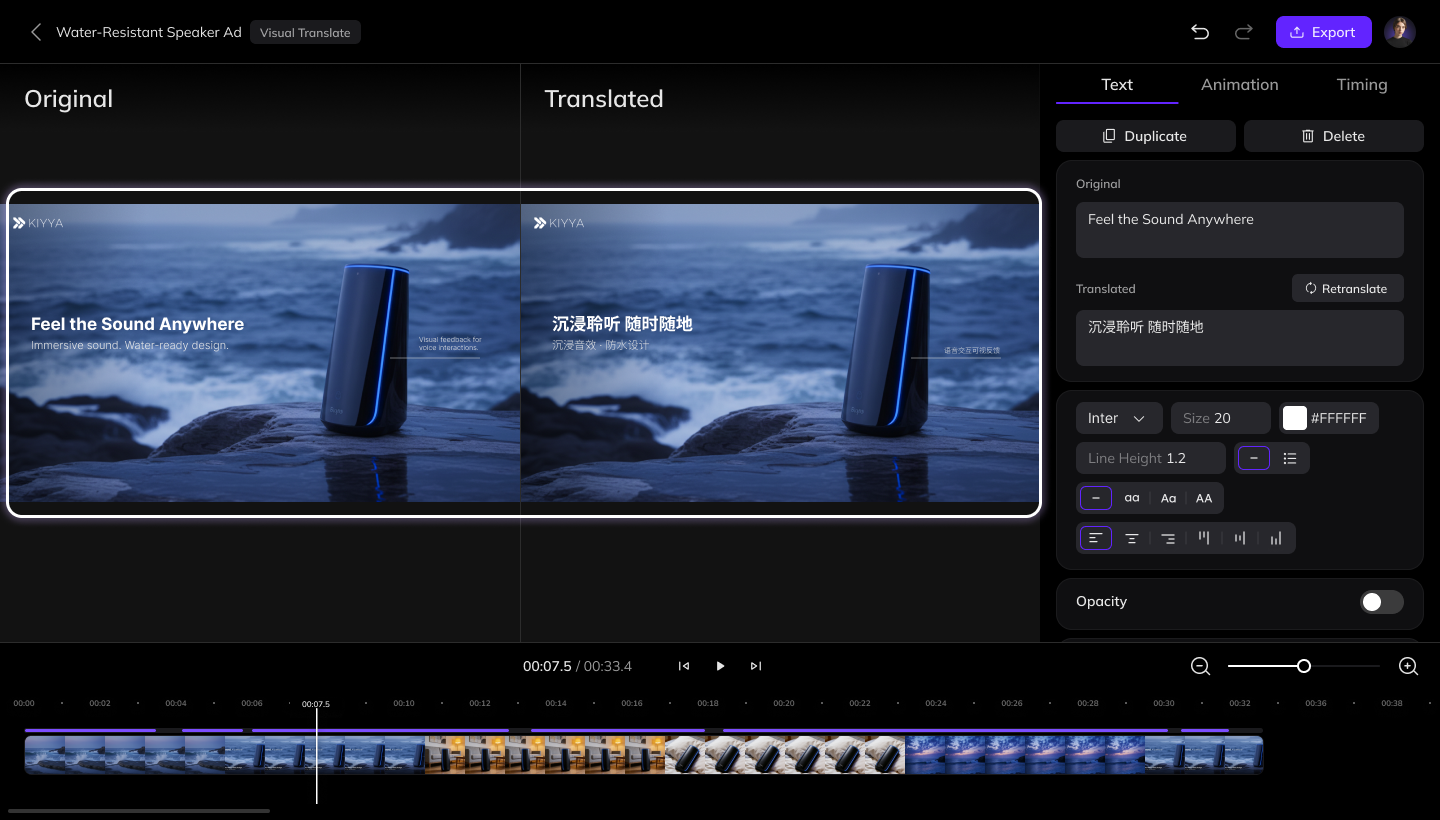
### Compare View
You can preview the video in **side-by-side view**, comparing:
* The original video
* The translated video
This helps you quickly verify accuracy and layout consistency.
 ### Edit Text Content
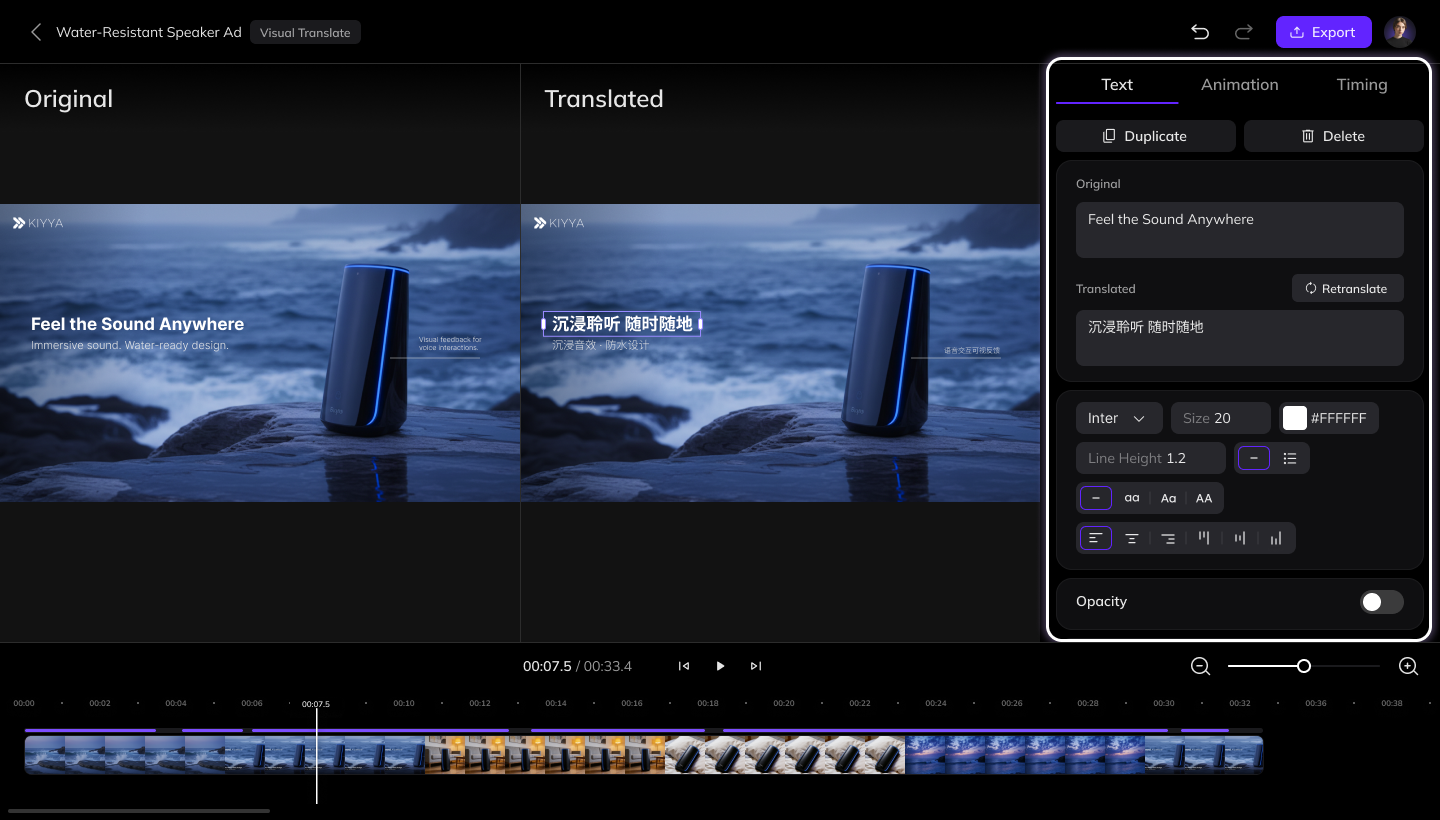
Select any text element in the video. All edits are made in the **right-side panel**.
* **Edit text content**:
* If the detected source text is incorrect, edit it and click**Retranslate** to regenerate the translation.
* You can also directly edit the translated text.
* **Adjust text style and animation:**
* **Text Style**: Font, size, color, and other visual styles
* **Animation**: In and Out animations
* **Timing**: Start time, duration, and layer order
### Edit Text Content
Select any text element in the video. All edits are made in the **right-side panel**.
* **Edit text content**:
* If the detected source text is incorrect, edit it and click**Retranslate** to regenerate the translation.
* You can also directly edit the translated text.
* **Adjust text style and animation:**
* **Text Style**: Font, size, color, and other visual styles
* **Animation**: In and Out animations
* **Timing**: Start time, duration, and layer order
 ### Edit Directly on Canvas
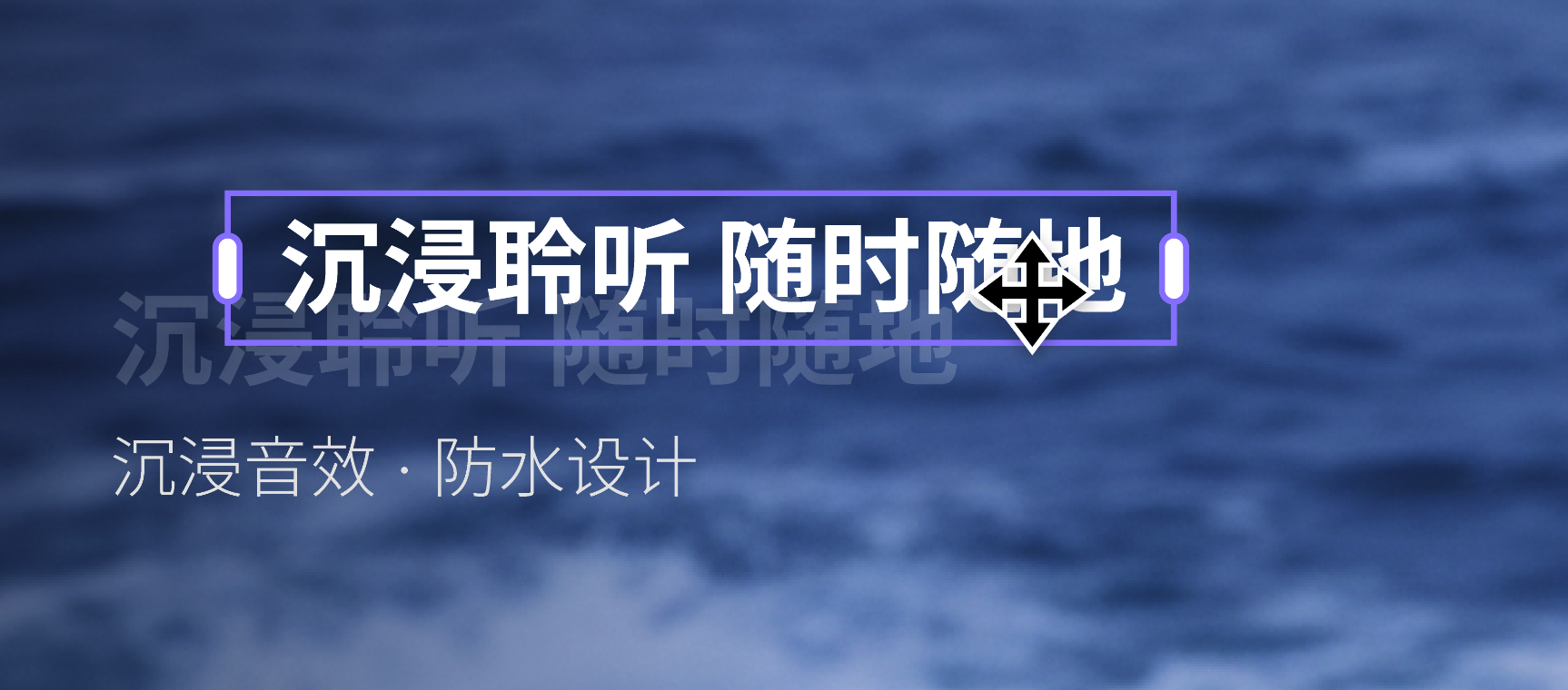
You can also adjust text elements directly in the video preview:
* Move text position
* Rotate text
* Resize the text box width
### Edit Directly on Canvas
You can also adjust text elements directly in the video preview:
* Move text position
* Rotate text
* Resize the text box width
 ## Export the Video
After reviewing and editing, click the **Export** button in the top-right corner to generate the final video.
## Continue with Dubbing, Subtitles, or Lip Sync
If you want to continue with **dubbing**, **subtitles**, or **lip sync**, export the video first and then upload it to the corresponding tool.
We’re working on integrating Visual Translate with dubbing, subtitles, and lip sync into a single workflow. Stay tuned.
## FAQ
Please refer to the [Points Usage for AI Tools](/common/tools-points-rules) page for detailed pricing rules.
## Export the Video
After reviewing and editing, click the **Export** button in the top-right corner to generate the final video.
## Continue with Dubbing, Subtitles, or Lip Sync
If you want to continue with **dubbing**, **subtitles**, or **lip sync**, export the video first and then upload it to the corresponding tool.
We’re working on integrating Visual Translate with dubbing, subtitles, and lip sync into a single workflow. Stay tuned.
## FAQ
Please refer to the [Points Usage for AI Tools](/common/tools-points-rules) page for detailed pricing rules.