
Adicionar um segundo canal do YouTube
Introdução: Expandir a sua presença no YouTube com vários canais
Criar mais do que um canal do YouTube é uma das formas mais simples de crescer sem forçar todas as ideias para uma única marca. Quer seja um criador a ramificar-se para um novo nicho, uma empresa a criar centros de conteúdo separados ou uma organização a fazer malabarismos com diferentes programas, vários canais permitem-lhe manter-se concentrado e intencional. Abaixo, mostrarei como adicionar um segundo canal usando a mesma conta do Google e como gerenciá-lo com eficiência.
O poder de múltiplos canais
Um segundo ou terceiro canal pode ser uma jogada inteligente quando se quer:
- Criar conteúdos especializados para nichos ou públicos distintos - por exemplo, tutoriais num canal e bastidores noutro.
- Separar conteúdos pessoais e profissionais para que cada identidade se mantenha consistente.
- Mudar a marca ou começar de novo sem abandonar um canal estabelecido.
- Diversificar uma estratégia empresarial ou de criação com vários pilares de conteúdo.
- Experimentar novos formatos ou temas sem afetar as métricas do seu canal principal.
Os criadores utilizam frequentemente vários canais para proteger os sinais de desempenho no seu canal principal. Se um novo formato for um fracasso precoce, não confunde o público nem reduz a taxa de cliques no canal que já funciona.
Desmascarando o mito da conta única do Google
Um mito persistente é o de que é necessário um novo endereço de correio eletrónico para cada canal. Na realidade, pode criar e gerir vários canais numa única conta Google, utilizando um início de sessão e um endereço de correio eletrónico associado. Esta caraterística manteve-se estável e continua a ser a abordagem padrão.
- Não é necessária uma conta Google separada para cada novo canal do YouTube.
- Gestão centralizada facilita o início de sessão, a segurança e a administração.
- Esta abordagem é reforçada por guias do criador e orientações actualizadas.
Compreender os tipos de canais do YouTube
Os canais do YouTube dividem-se geralmente em dois tipos:
- Canal pessoal (predefinição): Ligado diretamente ao nome e à identidade do seu perfil pessoal do Google.
- Marca Conta Canal: Uma identidade separada, não diretamente ligada ao seu perfil pessoal do Google, concebida para uma gestão mais flexível e acesso da equipa.
Independentemente do tipo utilizado, cada canal está, em última análise, associado a uma conta Google.
Pré-requisitos e ferramentas essenciais
Contas obrigatórias
Para criar outro canal do YouTube, é necessário:
- Uma Conta Google existente (aquela a que pretende associar o novo canal)
- Um navegador web como o Google Chrome, Mozilla Firefox, Microsoft Edge ou Apple Safari
- Uma ligação estável à Internet
Ferramentas e recursos recomendados
Estas ferramentas facilitam a configuração e a gestão contínua:
- Estúdio do YouTube: O seu principal centro para carregamentos, análises, definições e personalização.
- Conta do Gmail: Para onde o YouTube envia notificações importantes, alertas de segurança e actualizações de políticas.
- Conta da marca (opcional mas recomendada): Útil se pretender uma identidade profissional, acesso à equipa ou separação do seu nome pessoal.
Informações essenciais para preparar
Antes de clicar em criar, prepare-se para algumas noções básicas:
- Nome do canal pretendido: Torná-lo descritivo e alinhado com as diretrizes do YouTube. Evite caracteres ou abordagens de nomes que violem as políticas.
- Nicho de canal ou ideia de conteúdo: Uma frase simples sobre o motivo da existência deste canal ajuda a manter os uploads focados.
- Arte do canal e imagem de perfil (Opcional, mas recomendado): Ter isso pronto faz com que seu novo canal pareça legítimo imediatamente.
O papel das contas de marca na gestão multicanal
As contas de marca são fundamentais para a forma como as configurações de vários canais funcionam normalmente no YouTube, especialmente se pretender uma identidade separada ou opções de colaboração. As contas de marca são o caminho prático para gerir vários canais de forma limpa quando precisa de membros da equipa ou de uma identidade pública distinta.
O que é uma conta de marca?
Uma Conta de marca é um serviço do Google que pode ser utilizado para gerir um canal do YouTube como uma entidade distinta. Os principais detalhes incluem:
- Permite que vários utilizadores ajudem a gerir o canal.
- Funciona como uma identidade separada do seu perfil pessoal do Google.
- Distinção fundamental: Um canal da Conta da marca pode ter o seu próprio nome, imagem de perfil e conteúdo, independentemente da sua identidade pessoal do Google.
Vantagens da utilização de uma conta de marca
Se estiver a falar a sério sobre o escalonamento, as contas de marca ganham normalmente em flexibilidade:
- Colaboração em equipa: Adicione gestores sem partilhar o seu início de sessão pessoal do Google.
- Identidade separada: O seu canal pode apresentar um nome de marca em vez do seu nome pessoal.
- Controlo melhorado: Funções e permissões mais granulares para os gestores de canais.
- Flexibilidade: Pode transferir a propriedade se a sua empresa mudar de mãos ou se contratar uma nova agência.
- Escalabilidade: Especialmente útil para empresas, organizações e criadores que planeiam vários canais.
Como as contas de marcas se integram no YouTube
- Quando cria um novo canal, o YouTube solicita frequentemente a associação a uma Conta de marca.
- Se não ligar explicitamente a uma Conta de Marca existente, o YouTube criará automaticamente uma nova Conta de Marca para o canal.
- Cada conta de marca pode alojar um canal do YouTube. Se pretender outro canal com o mesmo início de sessão do Google, normalmente cria outra conta de marca.
Prós e contras - Canal pessoal vs Conta da marca
Prós
- Simples se for um criador a solo e quiser que tudo esteja ligado à sua identidade pessoal.
- Menos peças móveis se nunca planear adicionar colaboradores.
- Mais fácil de começar rapidamente com um único início de sessão.
Contras
- É mais difícil colaborar sem partilhar credenciais.
- Menos separação entre o seu nome pessoal e a marca do seu canal.
- A gestão da propriedade e do acesso pode ser limitada mais tarde.
Prós
- Delegação mais fácil com funções como Proprietário, Gestor e Gestor de Comunicações.
- Melhor para uma marca profissional e privacidade.
- Maior flexibilidade na transferência de propriedade.
Contras
- É necessário ter cuidado com as definições de permissão, especialmente com o acesso do Proprietário.
- Mais despesas administrativas se tiver muitos canais, porque cada canal tem as suas próprias definições e ambiente do Studio.
- A gestão de muitas contas de marca pode exigir práticas organizacionais mais sólidas.
Passo a passo: Criar o seu segundo canal do YouTube
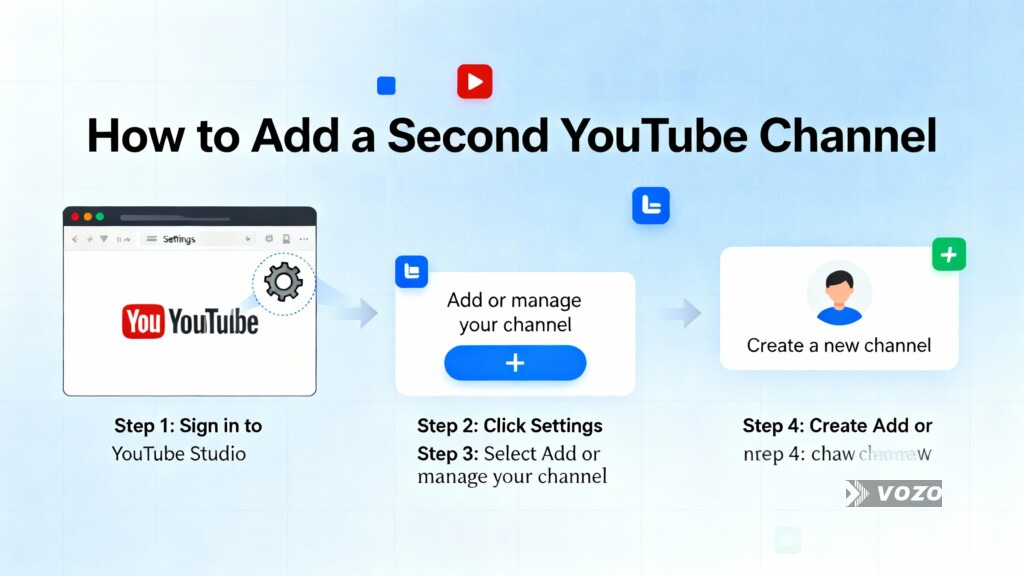
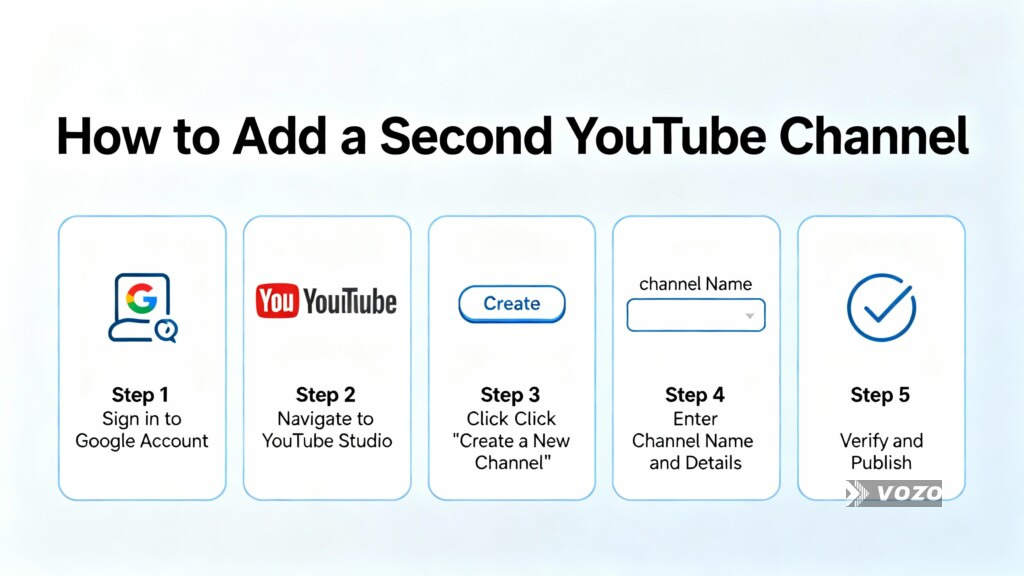
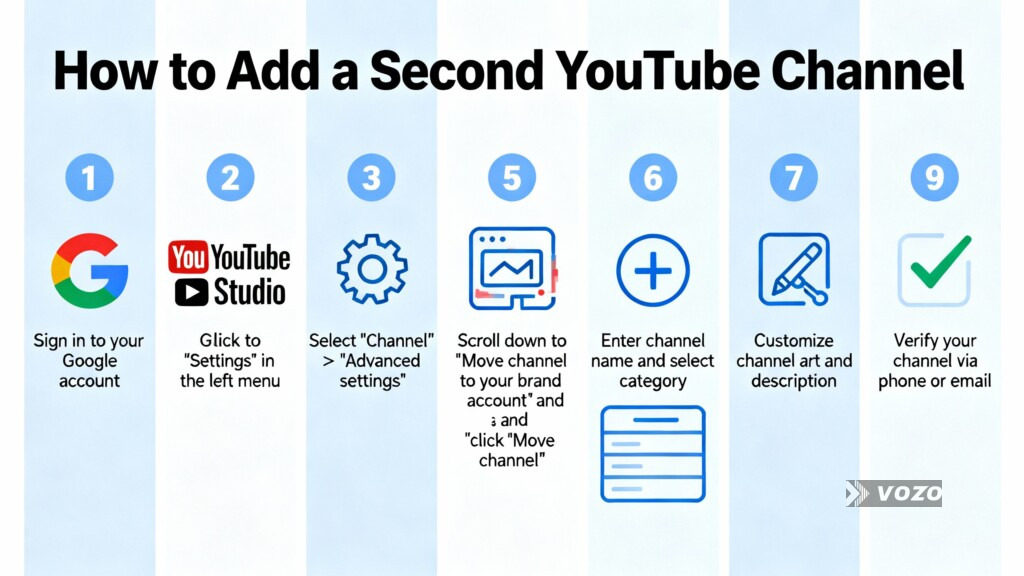
Estimativa de tempo: 5 a 10 minutos para a criação do canal, mais 30 a 60 minutos para a configuração inicial e a personalização. Abaixo, mostrarei como criar outro canal do YouTube usando a interface padrão do YouTube e os caminhos do YouTube Studio.
Passo a passo
Iniciar sessão na sua Conta Google
Abrir o menu do perfil
Ir para Definições
Procurar a opção de gestão de canais
Iniciar a criação do canal
Introduzir o nome do canal
Confirmar a associação da conta da marca
Reconhecer os termos e políticas
Finalizar a criação do canal
Alternar entre canais
Pós-criação: Verificar e gerir o novo canal
Confirmação e acesso inicial
Após a criação, é normalmente redireccionado diretamente para Estúdio do YouTube para o novo canal. O seu painel de controlo estará vazio no início, mas pronto para carregamentos, personalização e definições.
Verifique o URL do seu canal. Ele deve ser parecido com: youtube.com/channel/UC.... Guarde esse URL para ligação e partilha.
Passos essenciais para a configuração de um novo canal
Estes passos iniciais ajudam o seu canal a ter um aspeto profissional e a começar a ser descoberto.
Personalizar canal - separador Marca
- Imagem do perfil: Mínimo 98 por 98 pixéis, 4 MB máximo, JPG, GIF (sem animação), BMP ou PNG.
- Imagem da faixa: Recomendado 2048 por 1152 píxeis, 6 MB no máximo para uma boa visualização em todos os dispositivos.
- Marca de água de vídeo: Recomendado 150 por 150 pixéis para aparecer durante os vídeos.
Dica prática: Mantenha a sua imagem de perfil legível em tamanhos pequenos. Um logótipo simples funciona normalmente melhor do que desenhos com muito texto.
Informações básicas - separador Informações básicas
- Descrição do canal: Até 1000 caracteres. Escreva primeiro para os humanos e inclua as frases que as pessoas procuram.
- Adicionar ligações: O seu sítio Web, boletim informativo, redes sociais ou canais relacionados.
- Informações de contacto: Adicionar um e-mail comercial para pedidos de informação.
Dica prática de SEO: coloque o seu nicho principal e a promessa de conteúdo nas duas primeiras linhas da sua descrição, porque é isso que muitos espectadores vêem antes de clicar em mais.
Carregue o seu primeiro vídeo
No YouTube Studio, clique em Criar (ícone da câmara) e selecionar Carregar vídeos. Adicione título, descrição, etiquetas e uma miniatura. Exemplo: Se o seu novo canal for “Tutoriais curtos sobre o Excel”, o seu primeiro carregamento pode ser “Tabelas dinâmicas do Excel em 10 minutos” e ligar ao seu canal principal na descrição para promoção cruzada.
Rever as definições do canal
No YouTube Studio, vá para Definições e reveja as definições do canal, como o país, as palavras-chave do canal e as definições avançadas, como a designação de público “Made for Kids”. Reveja as predefinições de carregamento para obter títulos, descrições e etiquetas consistentes. Ignorar as definições de audiência pode criar problemas de conformidade, por isso, dedique algum tempo a defini-las corretamente.
Gestão de contas de marca para acesso delegado
Para gerir as permissões da conta da marca:
- Aceda a https://myaccount.google.com e abra Dados e privacidade.
- Deslocar-se para Dados de aplicações e serviços que utiliza, clique Conteúdos guardados dos serviços Google.
- Abaixo de Contas da marca, clique Gerir as suas contas de marca e selecionar a conta associada ao seu canal.
Para adicionar ou remover gestores, clique em Gerir permissões, adicionar utilizadores por correio eletrónico e atribuir funções: Proprietário, Gerente, Gerente de comunicações. Atribua o estatuto de Proprietário apenas a pessoas em quem confia plenamente, porque os Proprietários podem eliminar a Conta da marca.
Erros comuns a evitar
Não utilizar uma conta de marca
Se associarmos tudo a uma identidade pessoal, limitamos a colaboração e a flexibilidade futura. Torna-se mais difícil transferir a propriedade ou conceder acesso limitado.
Negligenciar a personalização de canais
Os ícones predefinidos e os banners em branco são um sinal de inacabamento. Isto pode diminuir a confiança do utilizador, o envolvimento e a conversão de subscritores.
Nomes e marcas inconsistentes
Um nome de canal que não corresponda ao conteúdo, ou que seja demasiado semelhante a outra marca, cria confusão. Isto leva a uma fraca visibilidade na pesquisa e à diluição da marca.
Ignorar os Termos de Serviço do YouTube
As violações das diretrizes da comunidade ou dos direitos de autor podem fazer descarrilar um canal rapidamente. As consequências incluem a remoção de vídeos, strikes ou o encerramento do canal.
Saltar as definições iniciais do canal
Se ignorar as definições do país, as palavras-chave do canal ou a seleção do público do Made for Kids, isso pode afetar a capacidade de descoberta e a conformidade, incluindo as considerações da COPPA. Isto pode resultar num alcance limitado e em potenciais problemas legais.
Sobreposição de conteúdos entre canais
O carregamento de vídeos idênticos ou quase idênticos em vários canais pode ter um efeito contrário. O YouTube pode tratar o conteúdo como duplicado, reduzindo a visibilidade e confundindo o seu público.
Resolução de problemas comuns
“Opção ”Criar um novo canal" não visível
Experimente estas correcções:
- Limpe a cache e os cookies do navegador e, em seguida, reinicie o navegador.
- Experimente um navegador diferente, como o Chrome, Firefox, Edge ou Safari.
- Verifique se existem restrições de conta, por exemplo, limitações relacionadas com a idade.
- Utilize uma ligação direta como
youtube.com/channel_switcherpara aceder à gestão de canais.
Não é possível alternar entre canais
- Termine a sessão e volte a iniciar sessão.
- Experimente uma janela anónima ou privada, ou mude de navegador.
- Confirme se a sua conta Google está corretamente sincronizada entre dispositivos.
Novo canal não aparece nos resultados de pesquisa
- Aguardar a indexação. Pode demorar horas ou dias.
- Carregue conteúdo e crie subscritores iniciais. Os canais vazios muitas vezes não são classificados para pesquisas mais abrangentes.
- Adicionar palavras-chave relevantes do canal nas informações básicas do YouTube Studio.
Não é possível adicionar gerentes à conta da marca
- Apenas um Proprietário pode adicionar ou remover gestores. Confirme a sua função.
- Verifique se o endereço de correio eletrónico está correto e se pertence a uma conta Google válida.
- Verificar se o convite está pendente e precisa de ser aceite.
Perguntas frequentes (FAQ)
Preciso de um endereço de correio eletrónico separado para cada canal do YouTube?
Não. É possível gerir vários canais do YouTube através de uma única conta Google e do respetivo endereço de correio eletrónico associado.
Posso transferir um canal do YouTube para uma conta Google diferente?
Sim. Se o canal estiver associado a uma Conta da marca, pode transferir a propriedade da Conta da marca para outra conta Google.
Quantos canais do YouTube posso ter numa única conta Google?
O YouTube não especifica um limite rígido. Na prática, pode criar muitos canais, cada um associado a uma conta de marca separada, todos geridos por um único início de sessão do Google.
Posso eliminar um segundo canal do YouTube sem afetar o meu canal principal?
Sim. A exclusão de um canal específico da Conta da marca remove apenas esse canal e seu conteúdo. Os seus outros canais e a sua conta Google não são afectados.
A criação de um segundo canal permite automaticamente rentabilizá-lo?
Não. Cada canal tem de cumprir, de forma independente, os requisitos de elegibilidade do Programa de Parceiros do YouTube, tais como os limites de subscritores e de tempo de visualização, antes de a monetização estar disponível.
Qual é a diferença entre um canal do YouTube e uma conta de marca?
Um canal do YouTube é a presença pública onde os seus vídeos são apresentados. Uma Conta de marca é um tipo de conta Google que aloja um canal do YouTube e permite a gestão de vários utilizadores, além de uma identidade separada do seu perfil pessoal.
Posso obter imediatamente um URL personalizado para o meu novo canal?
Não. Os URLs personalizados estão normalmente disponíveis após o cumprimento de critérios como:
- 100 ou mais subscritores
- O canal tem pelo menos 30 dias
- Imagem de perfil e imagem de banner carregadas
Se estiver pronto para criar outro canal do YouTube, siga os passos acima e, em seguida, carregue um primeiro vídeo e complete os separadores Marca e Informações básicas. Esse pequeno esforço na linha de chegada é o que transforma um novo canal num verdadeiro ativo de crescimento.
