
How to Translate YouTube Videos into Any Language: 2026 Guide

目录

YouTube is one of the world’s largest video platforms, with more than 2 billion logged-in monthly users. For creators, that scale creates a major opportunity to reach audiences across languages and regions. This big audience gives content creators a great opportunity to reach viewers across the world. However, language barriers limit this potential with content that isn’t accessible and is not engaging.

Translating YouTube videos helps break language barriers and reach a wider audience. Whether you’re a viewer wanting to understand foreign-language videos or a creator aiming to break new ground, translating YouTube content opens your reach to millions.

This guide will show you exactly how to do it. Let’s first look at how viewers can auto-translate YouTube videos in just a few clicks. Next, we’ll show how creators can add translations using YouTube Studio or subtitle files. Finally, we’ll cover how to translate YouTube videos without subtitles using AI.

How to Auto-Translate YouTube Videos as a Viewer

Have you ever found an interesting YouTube video but realized it was in a language you couldn’t understand? Don’t worry, YouTube has a built-in feature, which helps translate subtitles to your preferred language.

1. Open Closed Captions

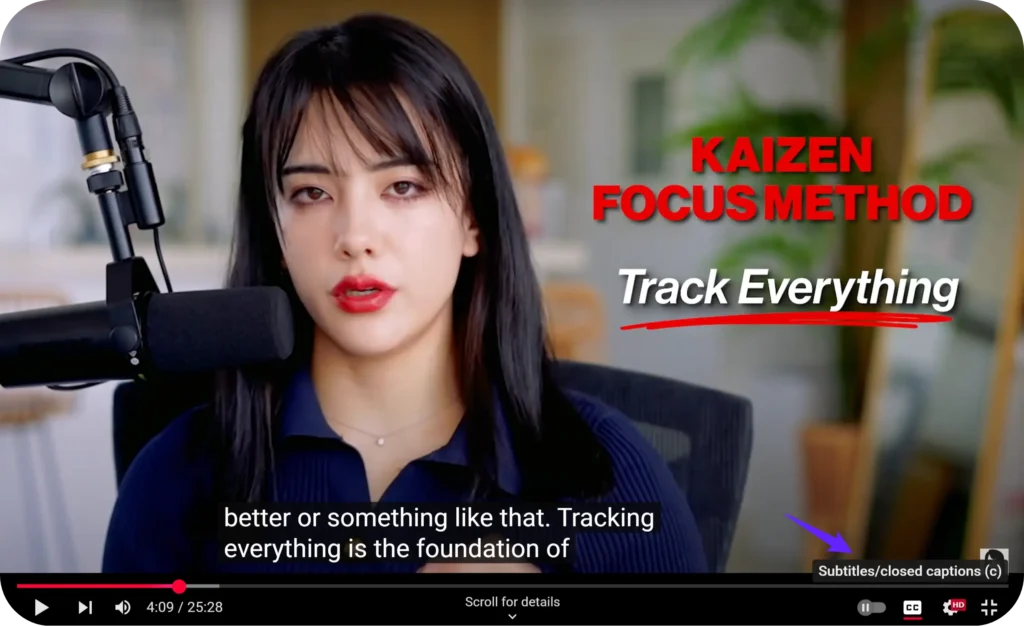
how to turn on closed caption on youtube

First use the YouTube video you wish to watch, play that video. Check the bottom part of the video player. There is a small “CC” button, which means Closed Captions. Click it to turn on captions. You need to make sure the video has captions — either auto-generated or uploaded by the creator — otherwise, auto-translation won’t work. 

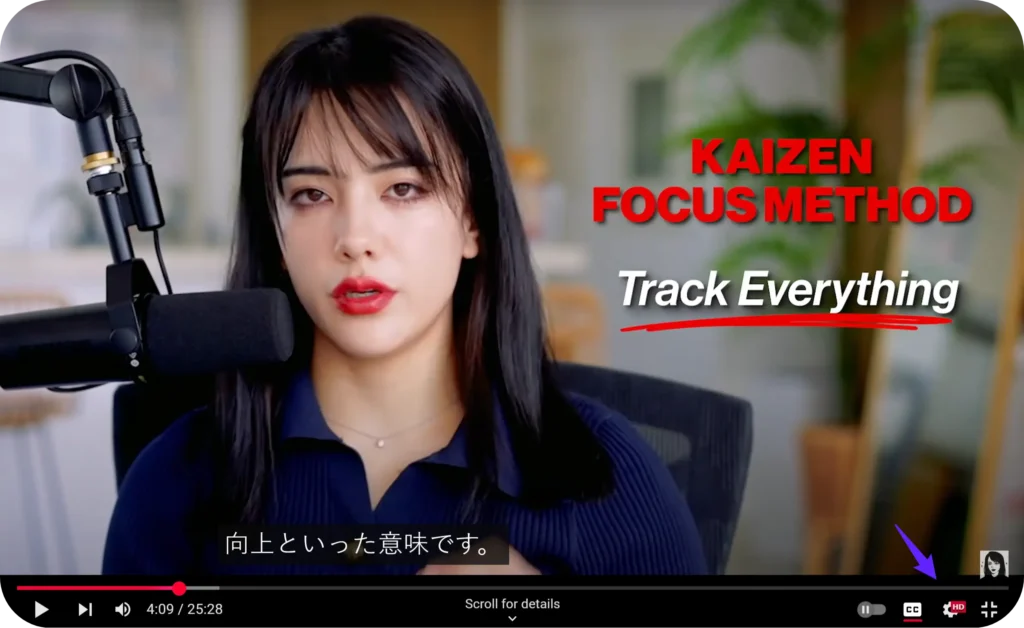
2. Click “Settings” Beside “Closed Captions”

Next, click the Settings icon (the small gear) located to the right of the Closed Captions (CC) button.

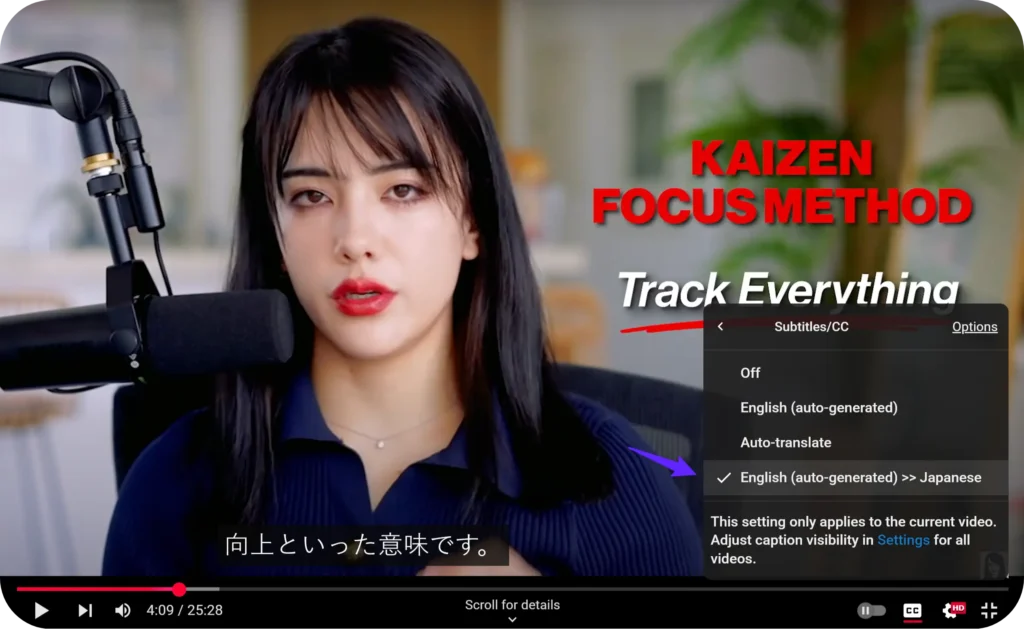
A small menu will pop up. Go to that menu and click on “Subtitles/CC.”

If the video has English captions, then it will show “English (auto generated)” or “English”.

3. Click Auto-Translate

Auto Translate Youtube with Youtube Subtitles Options

When you get to the Subtitles menu, you will be able to see “Auto translate.” Click on it.

Scroll to your preferred language, select it, and YouTube will translate the captions automatically.

This usually takes only a second or two, and then, you can watch the video in a language you are familiar with!

Read More: Best Chrome Extensions for Youtube Video Translation

How to Translate YouTube Video as a Creator?

Translating your videos helps you reach more viewers from other countries and grow your channel worldwide.

YouTube gives you two main options for translating your videos: auto-translating existing captions, or adding your own translated subtitles. Let’s walk through both.

1. How to Auto-translate YouTube Video

Without uploading anything, YouTube can automatically translate the video captions.

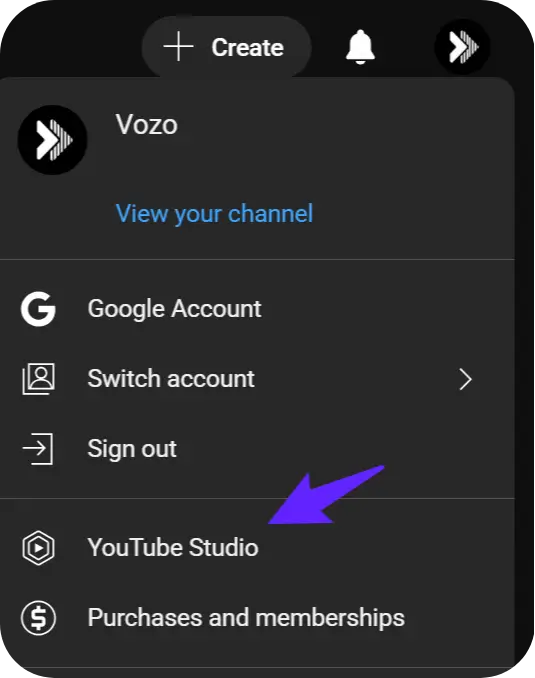
Step 1: Click on your account icon in the top right corner of the YouTube screen. Then click on “YouTube Studio”.

Click on "Youtube Studio"

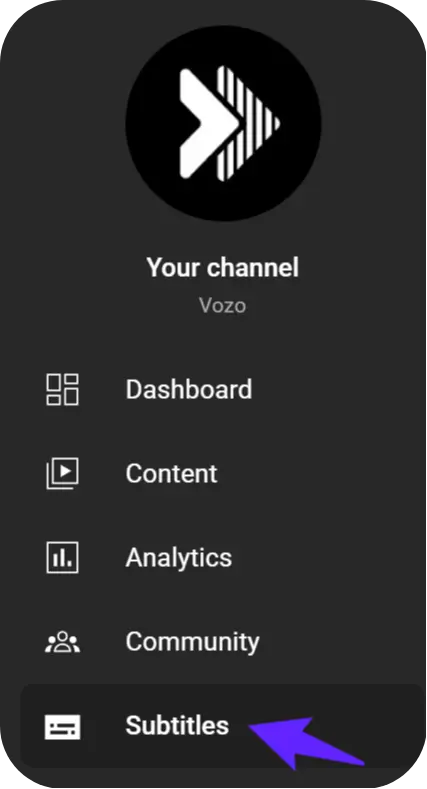
Step 2: Click on “Subtitles”.


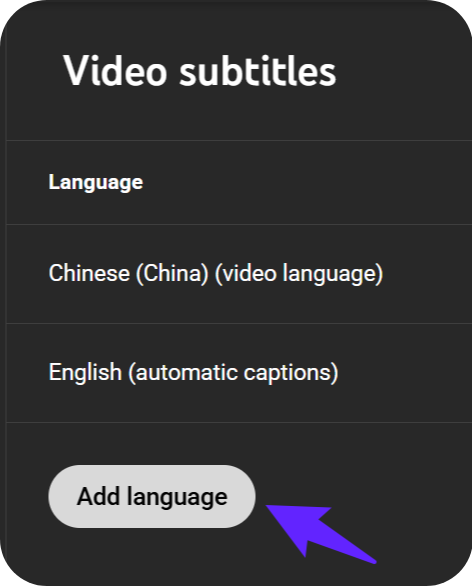
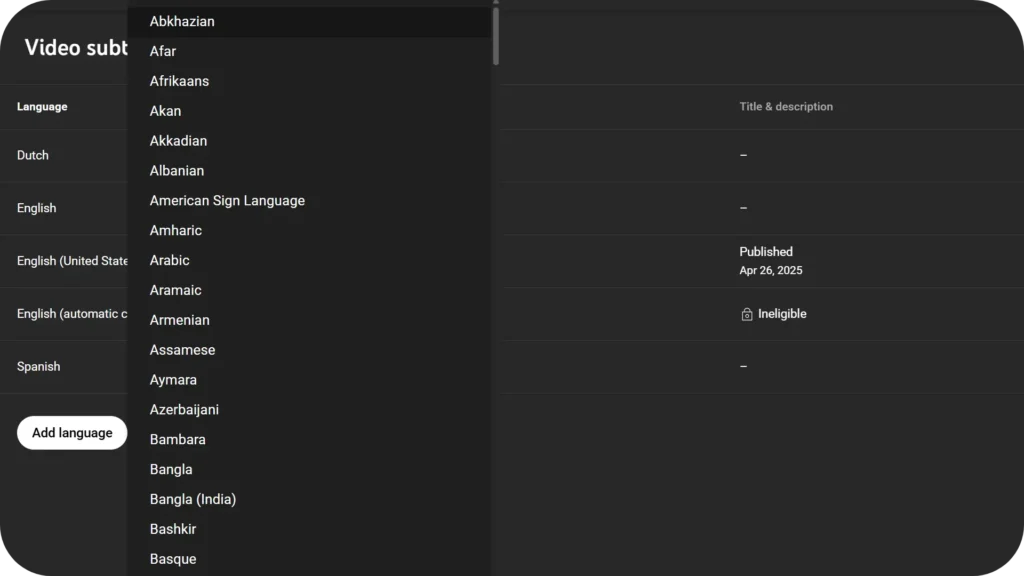
Step 3: Click on the video you want to translate. Then click “Add Language” and select your language.


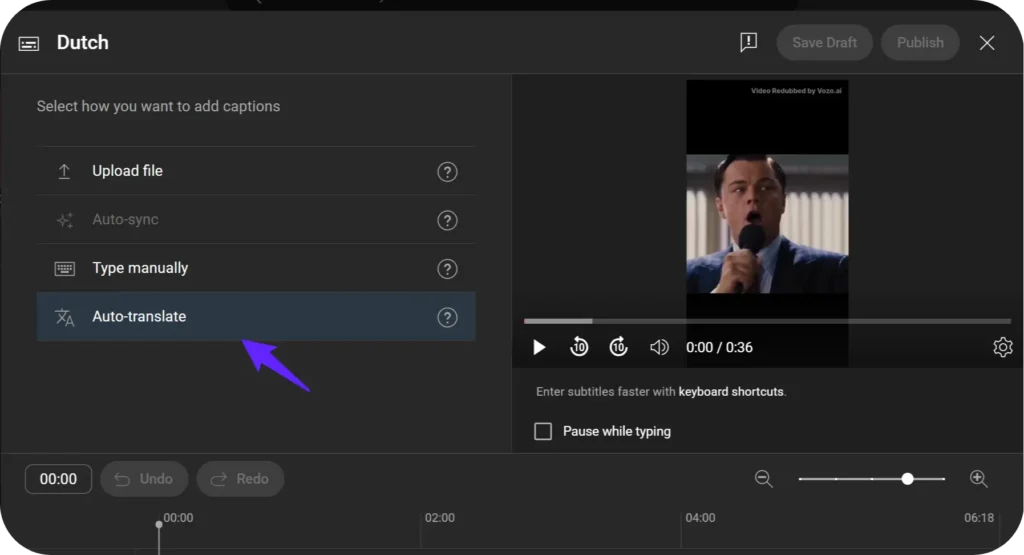
Step 4: Click “Auto-translate”. Then click “Publish.”

Click on Auto-translate Option

If your videos already have auto-generated captions or uploaded subtitles, the auto-translate feature will automatically translate them into other languages.

But here’s something you should know:
Some YouTube videos don’t have any transcript at all.

  • If there’s no transcript (no subtitles uploaded or auto-generated), YouTube can’t auto-translate it.
    So, it’s important to make sure your video has subtitles first.
  • Also, relying only on auto-translate isn’t always perfect. It may misinterpret jokes, slang or cultural references.

Upload your own subtitles to get accurate translations and keep your video’s message clear.

2. How to Add Translated Subtitles to YouTube Videos

If you use your own translated subtitles, you will have full control of the translation. Here’s how to do it:

  1. First, go to YouTube Studio.
  2. On Content, click the video you wish to work on.
  3. Click Subtitles at the left menu.
  4. There will be an Add Language button — click the language you want to add.
Select the Language You Want to Add Translated Subtitles

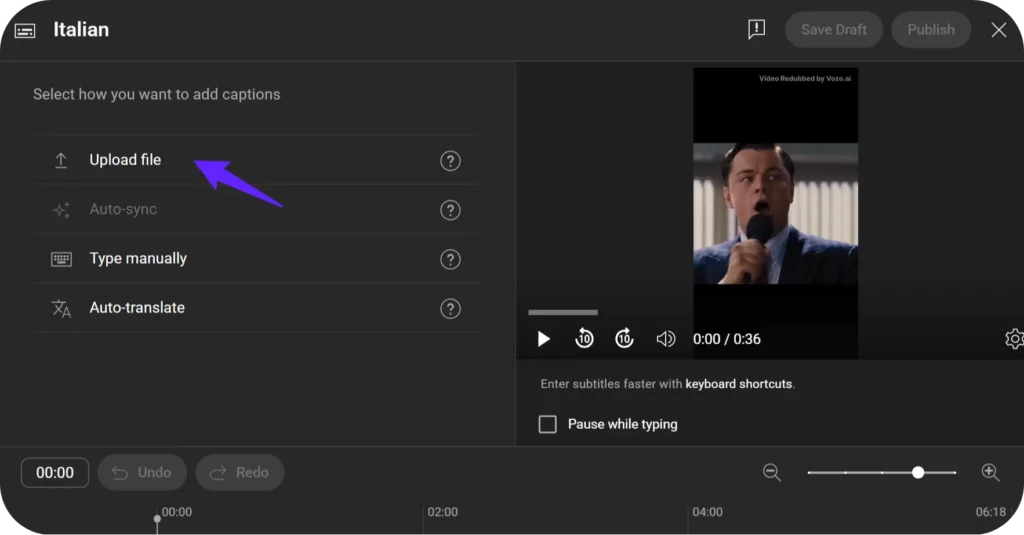
5. Then, just choose Upload a file.

Upload Your Translated Subtitles with .srt file

6. Set your translated .srt file, ensure it’s synced with video timing.

If you already have captions or an SRT file, you can also use a subtitle translator for YouTube videos to translate, review, and style subtitles before uploading them back to YouTube.

Once uploaded, translated captions make it easier for viewers to follow along — and they can improve your video’s SEO by adding searchable, keyword-rich content.

3. How to Translate Video Titles and Descriptions?

When it comes to reaching an international audience, subtitles aren’t enough. In addition, YouTube lets you translate your video titles and descriptions!

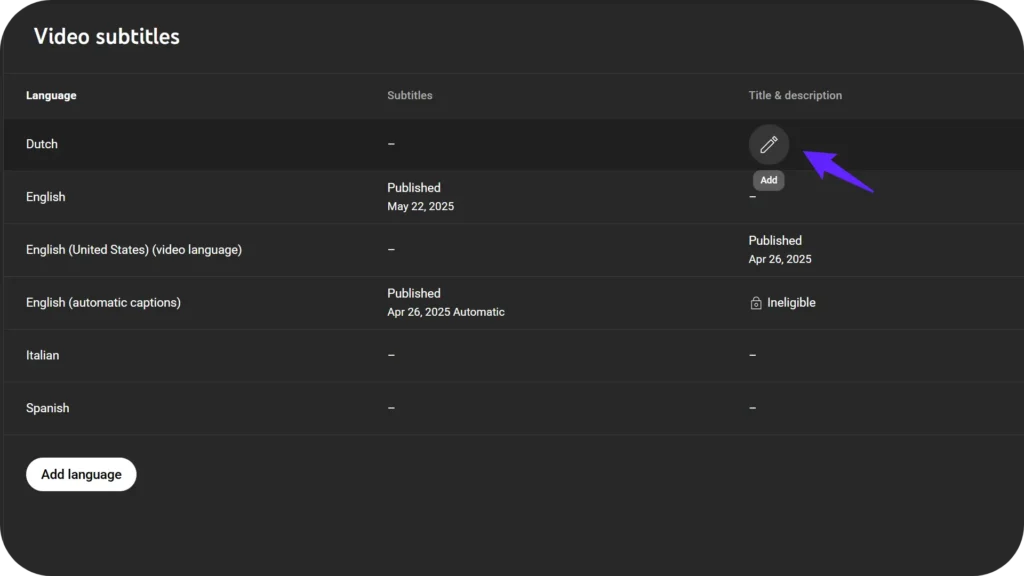
In YouTube Studio, go to Subtitles, select the video, click Add Language, then add the translated title and description under “Title and description.”

Add Translated Title & Description for Youtube Videos

Here you can manually add translated versions for each language.

It makes it easier for people to find your videos via search in their own language.

This is a way to increase views without creating a new video.

Source: https://support.google.com/youtube/answer/6289575?hl=en

Translated titles and descriptions can help your video appear in the right language for viewers and improve discoverability in international search results.

You can build a global channel faster than ever before if you do everything mentioned above — auto translate, upload subtitles, translate titles/descriptions.

How to Translate YouTube Videos without CC

Have you ever found a YouTube video you wanted to watch but there were no captions and you were unable to understand a single word? Translating YouTube videos without closed caption (CC) may be a headache but thanks to AI, it’s not as bad as it had been.

Even if you are not a tech expert you can translate videos without pre-existing captions, and you can do it whether you are trying to enjoy foreign content or expand your channel’s reach internationally internationally.

How to Translate a YouTube Video from One Language to Another?

Tools Recommeded:

Challenges of Translating YouTube Videos without Closed Captions

The thing is, you are starting from scratch without captions. If there’s no existing text, like in a livestream, you’ll have to extract the audio, transcribe it, translate it, and then add it back to the video. Doing it manually takes time, and is a very expensive proposition if you hire pros to do it.

Translate YouTube Videos with AI

This is where AI tools step in and change the game.

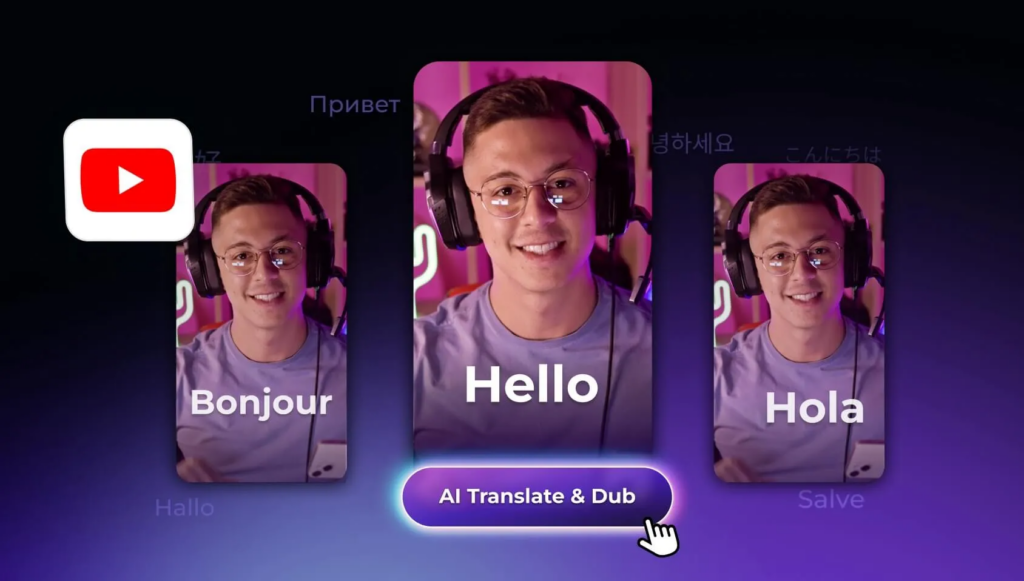
AI video translation tools can combine transcription, translation, dubbing, subtitles, and editing in one workflow.

It digitally extracts the voice from your video, transcribes it, translates it into your selected language, and uses AI dubbing for YouTube to create a professional voiceover with perfect audio synchronization.

Auto translation is provided by traditional YouTube CC, using Google Translate, while AI provides accurate translation with natural voice and precise lip sync. Vozo offers a free plan for testing, plus paid plans such as Creator at $29/month and Studio at $99/month, with AI points used for dubbing, lip sync, and visual translation.

Step-by-Step Guide to Translating YouTube Videos with AI

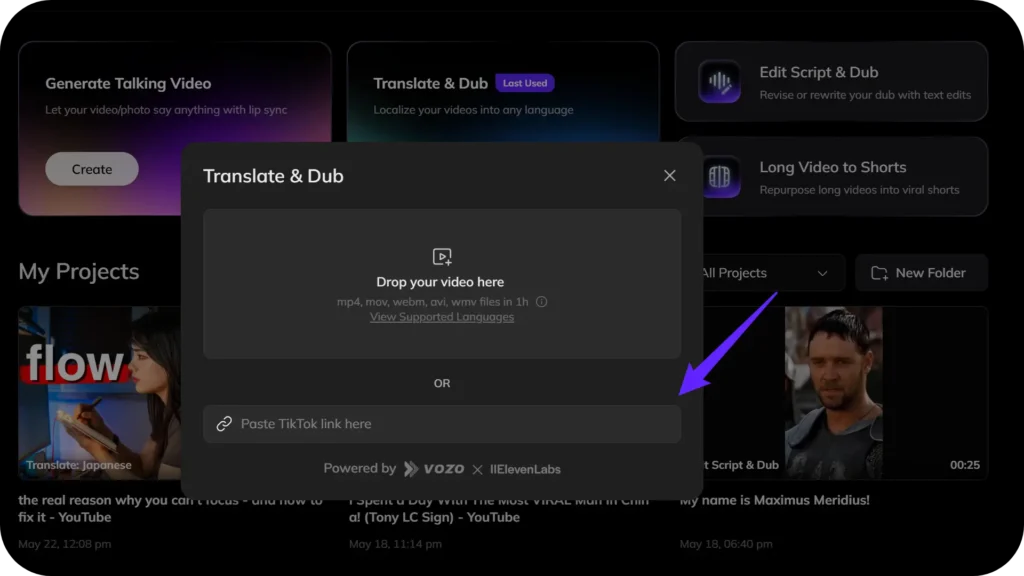
1. Access Vozo AI video translator for YouTube videos

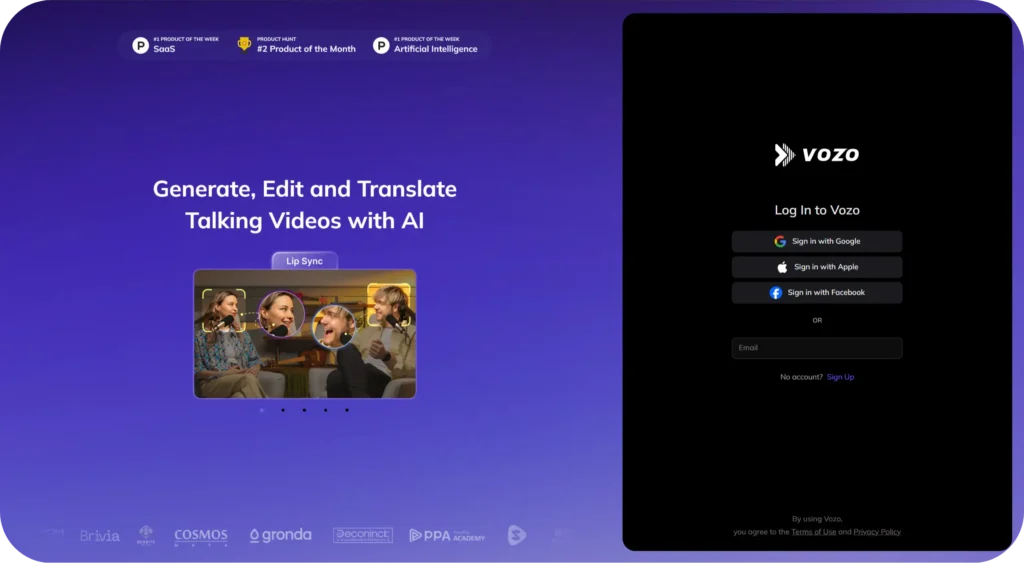
Start by opening Vozo’s AI video translator for YouTube videos, which can turn a YouTube link into translated subtitles, dubbed audio, and localized video output in one workflow.

2. Paste the YouTube Video Link

Copy the URL of the YouTube video you wish to translate and paste the YouTube link into Vozo. For publishing or redistributing a translated version, use videos you own or have permission to localize for processing directly.

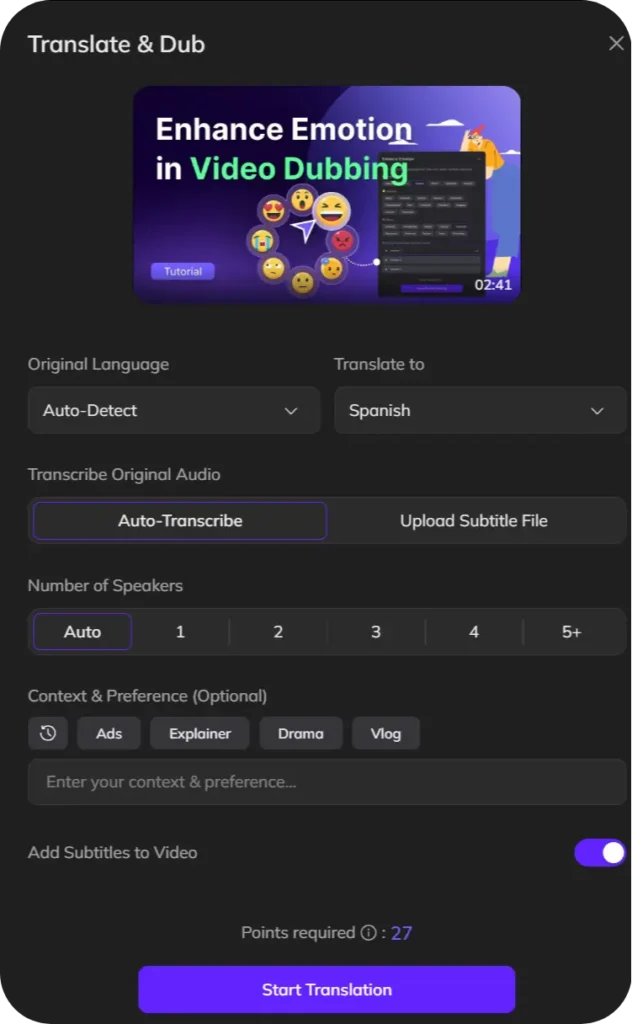
3. Select Target Language and Preferences

Select your target language on the available options. Vozo currently supports 111 source languages and accents and 165 target languages and accents for Translate & Dub / Translate Subtitles. Also select if applicable, the content genre and the number of speakers in the video. This is because the preferences help Vozo better tailor the translation.

4. Initiate the Translation Process

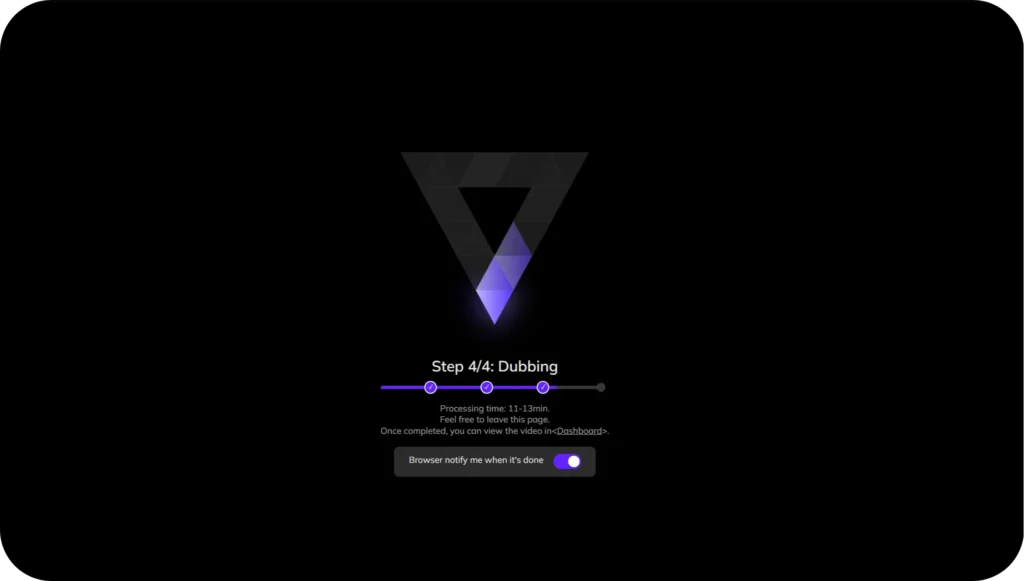
Once on the page click on the “Start Translation” button. It will automatically pull out the audio, transcribe the content, have it translated into the selected language, and generate a translated script and dubbed audio, with optional lip sync depending on your selected workflow and plan. Processing time depends on video length, selected features, and queue status. Preview the result before exporting.

Further Read:

Initial the Video translation Process with Vozo

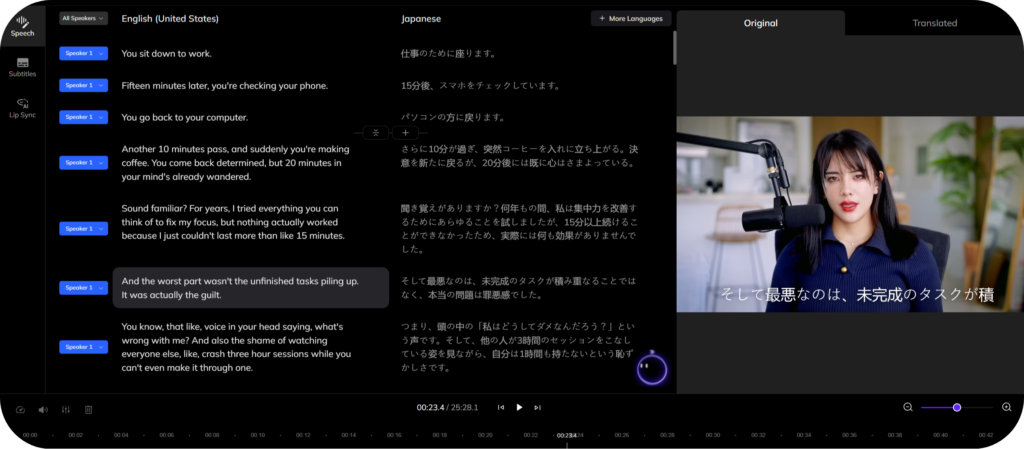
5. Review and Edit the Translation

When the translation is completed, you will be taken to the editing interface. You may also see the translated script vs original and make changes to the translation to match the video’s context. Vozo’s AI Pilot can help refine phrasing, tone, and cultural nuance, while the editor lets you adjust text, voice, and timing before export.

6. Add Subtitles and Finalize

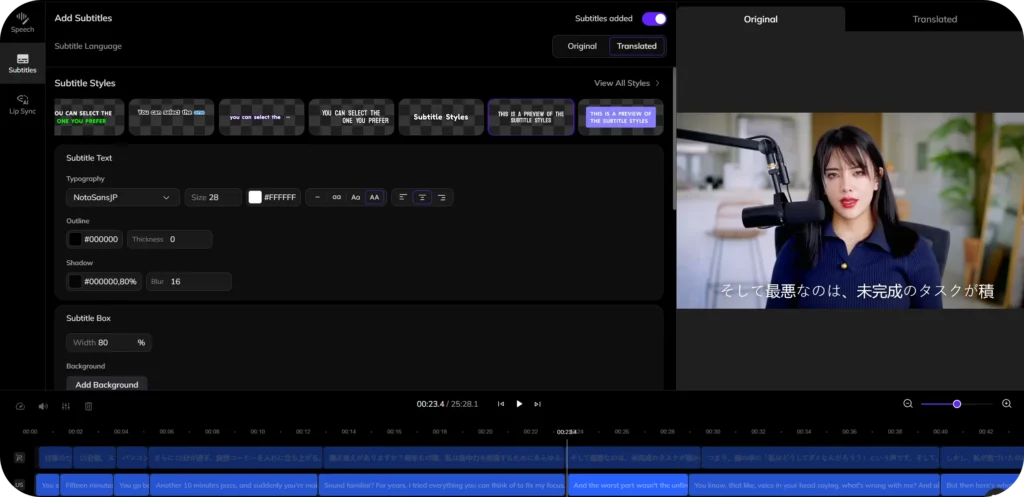
If desired, enable the “Add Subtitles” option to add translated captions to your YouTube video. Vozo supports subtitle workflows such as SRT, ASS, and VTT upload, plus customizable subtitle styles and final export after review. After finalizing, you can preview the translated video and download it for distribution. ​

Add Translated Subtitles to Youtube Videos

Benefits of Translating YouTube Videos

Translating your YouTube videos isn’t just a plus, it’s an opportunity to reach more audience across the world. The more viewers, the more watch time, the more engagement and maybe a higher ad revenue.

Furthermore, offer multilingual options can significantly improve your channel’s SEO and your content becomes easier to be found on your particular target countries.

Here are a few benefits of translating YouTube videos:

  • Expand your audience globally:
    It reaches viewers who speak different languages and will help grow your subscriber base around the entire world.
  • Boost engagement:
    Content in native language is more likely to be watched, Liked, Commented and shared.
  • Improve SEO and discoverability:
    As a result, multilingual videos will rank higher in search results depending on countries.
  • Increase watch time and revenue:
    This way, greater reach might result in longer periods of viewing and generated ad revenues.
  • Build trust and loyalty:
    Translations offer: You are showing that you respect your audience’s diversity and are more likely to keep them engaged.

Translating your videos can help you grow your audience, increase the visibility of your channel across the globe. Not bad for a few extra clicks with the right AI tool! For creators building a multilingual channel, Vozo’s AI video translation tool for YouTubers helps localize YouTube videos with translated subtitles, dubbing, and optional lip sync, so each upload can reach more viewers across languages.

· FAQs for Youtube Viewers

How do I turn on auto-translated subtitles on YouTube?

It’s pretty simple! First, click the “Settings” (⚙️) icon on the video. Then go to “Subtitles/CC”, select “Auto-translate”, and pick your preferred language. Just remember: this only works if the video already has captions available.

Why are translated subtitles sometimes inaccurate or unavailable on YouTube?

Auto-translate depends on the original captions. If the captions aren’t well-written or the creator didn’t enable them, translations can be missing or messy. Plus, machine translation isn’t perfect, so you might spot errors in phrasing or context.

· FAQs for Youtube Creators

How can I make my YouTube videos understandable to a global audience?

You have two main options, add your own translated subtitles automatically or manually:
1.Enable captions first, so YouTube’s auto-translate feature can help viewers in different languages. 2.Manual subtitles give you way more control over quality and accuracy.

Should I rely on YouTube’s auto-translate feature for my videos?

It’s definitely a convenient starting point — it’s easy and free. But keep in mind, it is convenient and free, but machine translation can miss nuance, slang, names, and cultural context. For important creator content, review and edit translated subtitles before publishing.. For the best viewer experience, especially if you have a big international audience, manual translations are a smarter move.

How do I add translated closed subtitles (CC) to my own YouTube videos?

Inside “YouTube Studio”, go to “Subtitles”, choose your video, and click “Add Language”. Then you can: – “Upload” your own subtitle file, – “Auto-sync” with a transcript, – “Type manually”, or – Use “Auto-translate” (then edit for accuracy). Adding your own translations helps viewers follow along without confusion!

What’s the difference between auto-generated captions and manually added subtitles?

Auto-generated captions are created by YouTube’s speech recognition, and they do mistakes — especially with accents, names, or technical terms. Manually added subtitles, whether in your original or a translated language, are checked by humans, so they’re typically much more precise.

· FAQs on Translating Video Without CC

How can I translate a YouTube video if it has no Closed Captions (CC) or subtitles?

If a video has no captions, YouTube’s built-in translation won’t work. In that case, you’ll need an external AI tool, like “Vozo AI Video Translator”, that can listen directly to the video’s audio and create translated subtitles from scratch.

If your main goal is to understand or repurpose non-English content, you can use a dedicated workflow to translate YouTube videos to English without relying on existing captions.

Can I translate the actual audio (dub) of a YouTube video, not just the subtitles?

Yes, you can! Some advanced tools can not only translate the speech but also generate a dubbed voiceover in another language. This makes the viewing experience even more natural for global audiences.

Read More: Dub vs Subtitles