
Updated as of June 2026: Google Translate cannot translate a YouTube video’s audio or on-screen visuals directly. What it can do is translate text, so it works best when you first extract captions or a transcript from YouTube and then translate that text into another language.
This guide shows three practical options: using Google Translate manually, using YouTube’s built-in subtitle translation tools, and using an AI video translator when you need to translate YouTube videos with subtitles, dubbed audio, voice cloning, or lip sync.

How to Use Google Translate for Videos
The manual method uses two tools: YouTube Studio for captions or transcripts, and Google Translate for text translation. It is useful for simple subtitle translation, but it does not create dubbed audio or translate on-screen text.
How to Use Google Translate for Videos
The manual method involves two main tools: YouTube Studio for the transcript and Google Translate for the translation.
Part 1: Get Your Video Transcript
1. Access YouTube Studio
Log in and head to your dashboard.
2. Select Your Video
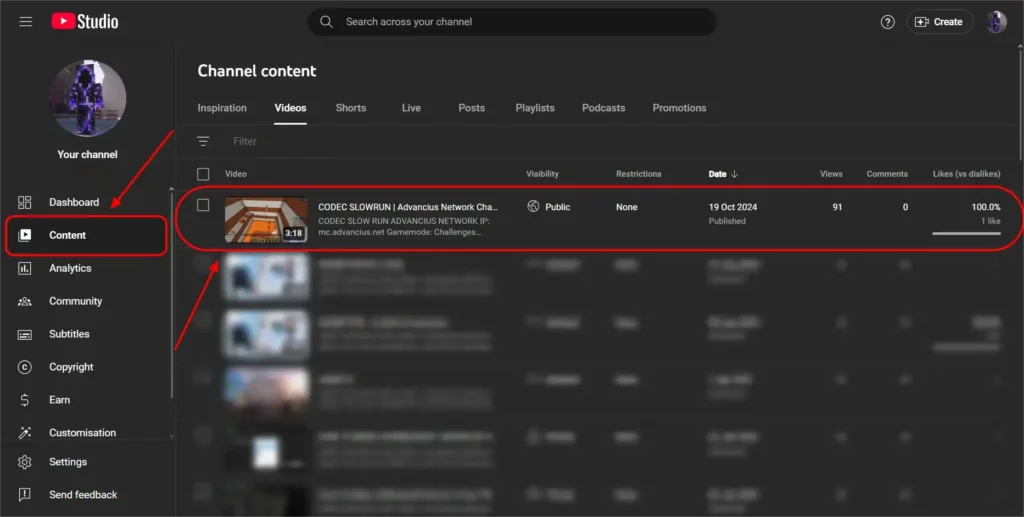
Go to ‘Content’ and find the video.
3. Generate Captions
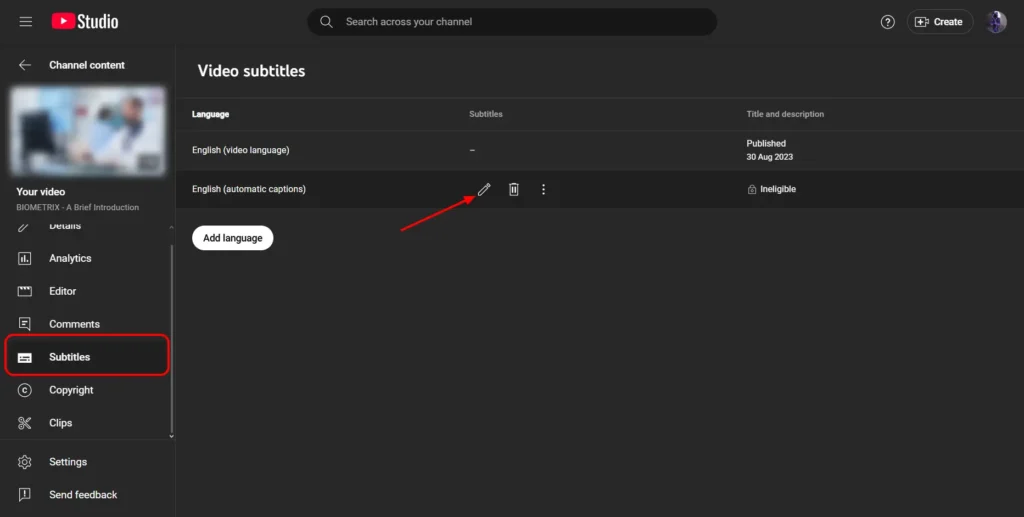
In ‘Subtitles’, hit ‘Duplicate and Edit’.
4. Copy Transcript
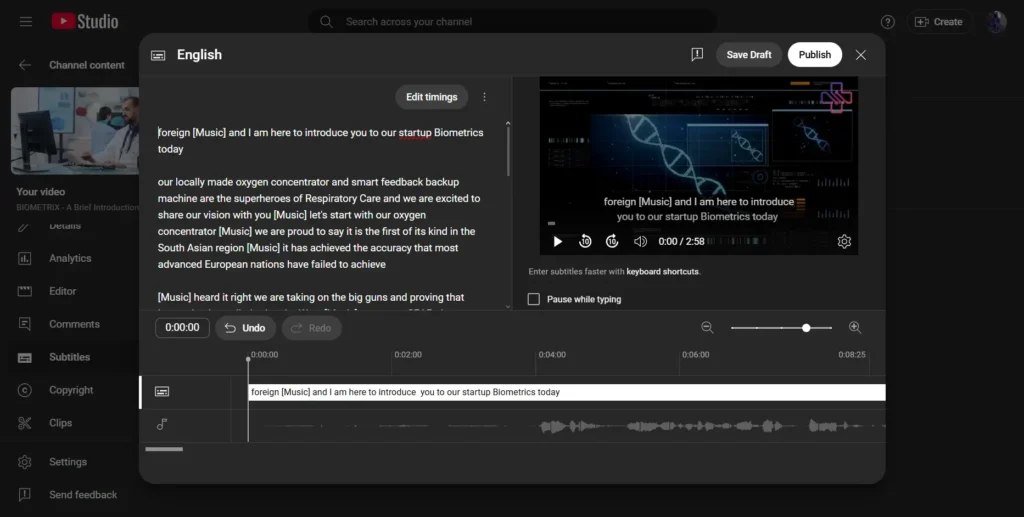
Review the text, then copy everything.
Part 2: Translate
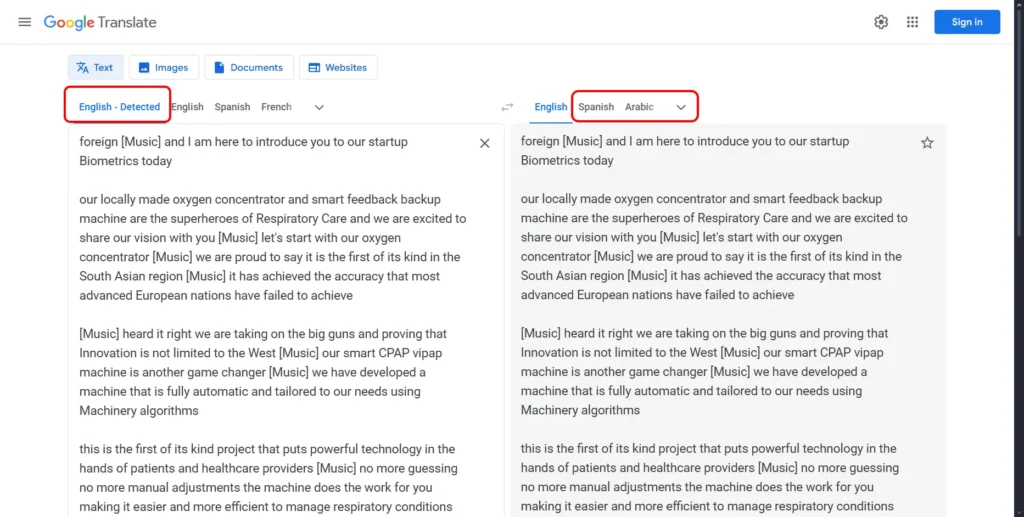
Paste into Google Translate
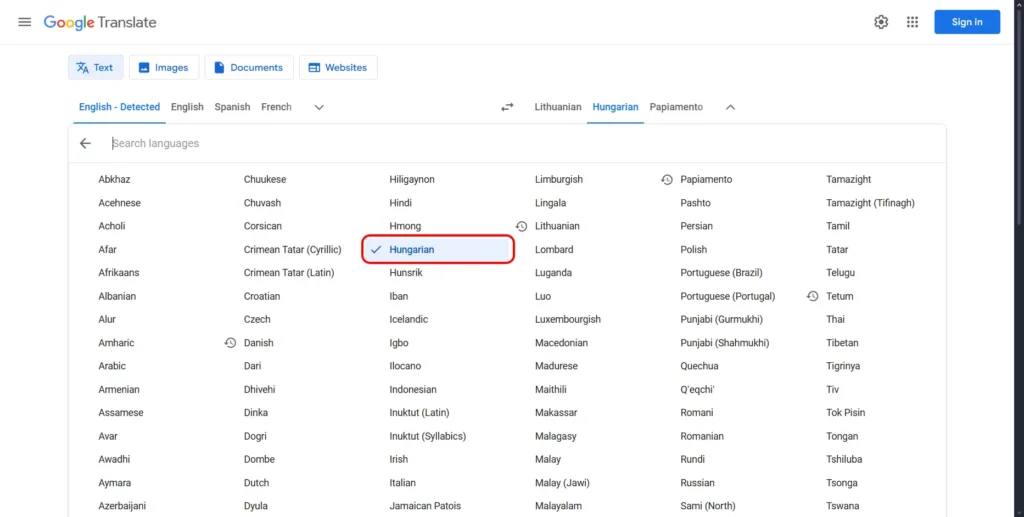
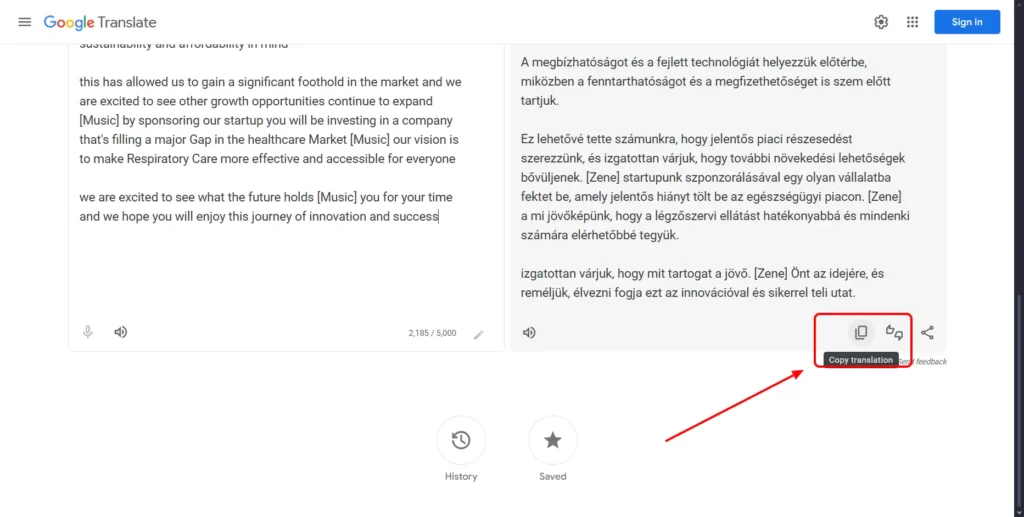
Paste the text, choose your target language, then copy the translation.
Part 3: Add to YouTube
Manually Add Subtitles
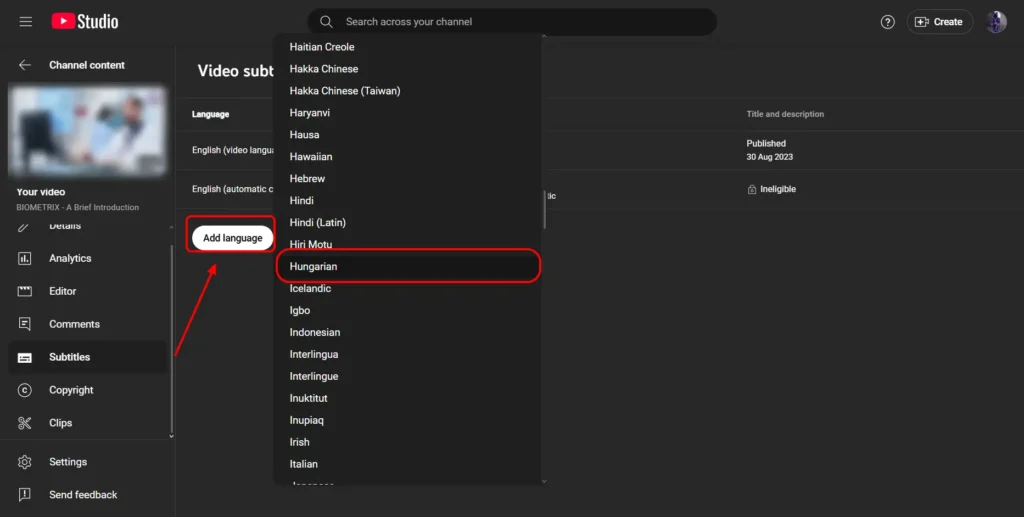
Go back to Studio, ‘Add Language’, and paste the translated text. Sync it manually.
Important Caveats
It Takes a Lot of Time
This manual process is slow and boring, especially for many videos.
Translation Isn’t Perfect
Google Translate often gets slang, idioms, and technical terms wrong.
Step 1: Transcribe the YouTube Video in YouTube Studio
First, you need to locate the transcript of your video. Here is how you can do that.
- Access YouTube Studio
Go to YouTube Studio and log in with your Google credentials.
- Select the Video
Click on the left-hand menu labeled “Content” and find the video you want to add subtitles to. Click the “Details” icon for that video.

Read More:
How to Add Subtitles & Captions to Youtube Videos
- Generate Automatic Captions
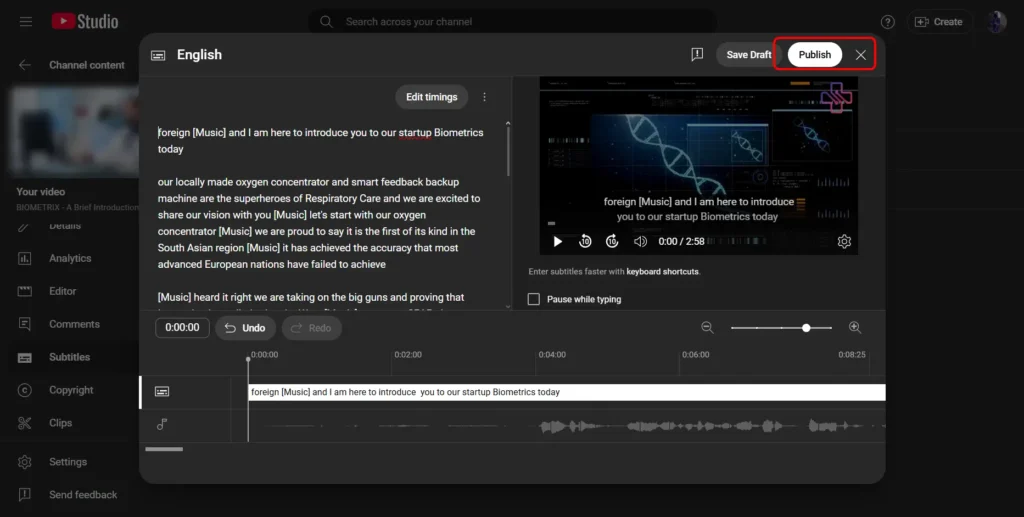
If automatic captions are available, YouTube will publish them in the video’s default language. Open the caption track, choose Duplicate and Edit, then review the transcript before copying it. If no automatic captions are available, add captions manually or upload a transcript file first.

- Copy the Transcript

Once the captions are displayed, you can review them for errors, copy the entire text transcript and prepare it for translation.
Step 2: Translate the Captions with Google Translate
You can use Google Translate to translate your text in the language you want.
- Go to Google Translate
Visit the Google Translate website.
Google Translate is useful for text captions, but you should still review names, brand terms, idioms, timestamps, and line breaks before publishing the translated subtitles.
- Paste the Transcript

Paste the copied transcript into the left-hand text box on the website. The tool will automatically detect the language.
- Select the Target Language

On the right-hand side, choose the language you want the subtitles to be translated into.
- Copy the Translated Transcript. For long transcripts, translate the text in smaller sections so you can preserve paragraph breaks and catch errors more easily.

Once the translation is complete, copy the translated text.
- Manually Add Translated Subtitles

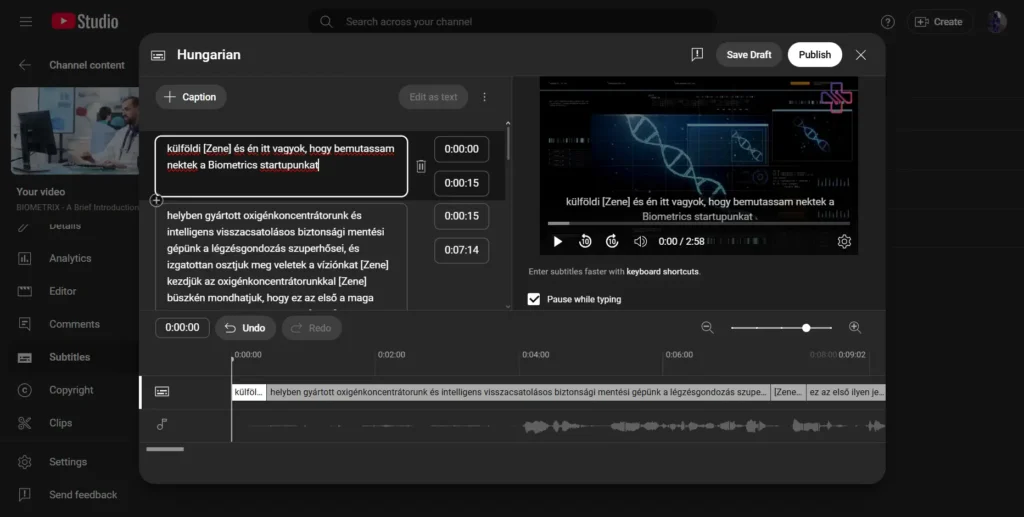
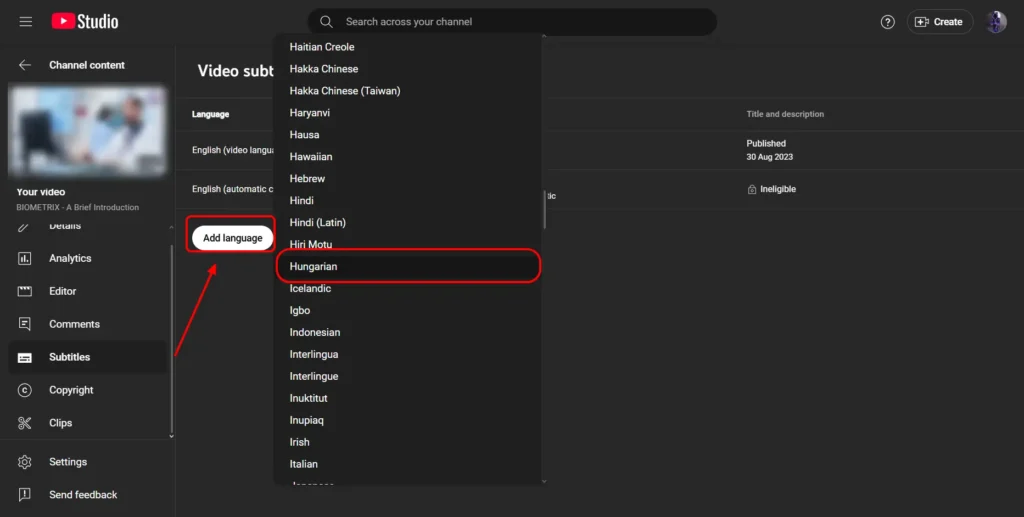
Return to YouTube Studio. Select “Add Language” in the Subtitles section, choose your target language and click “Add.” Paste the translated captions into the editor, then review the timing before publishing. If you use YouTube’s auto-sync option, confirm that the transcript language matches the spoken language and that the video audio is clear.
Key Caveats of Manual Translation
Google Translate is free and convenient, but the manual workflow still takes time. It also only translates text. It will not generate dubbed audio, preserve the speaker’s voice, sync translated speech to lip movement, or translate text that appears inside the video frame.
How to Translate YouTube Videos Automatically
If you feel that Google Translate still requires much manual work, YouTube also has a built-in tool that will help you translate subtitles automatically.
As of June 2026, YouTube’s built-in translation workflow is still best for subtitle accessibility and viewer understanding. It is not a full replacement for localized audio, voice cloning, lip sync, or edited subtitle files.
How to Translate YouTube Videos Automatically
If Google Translate is too manual, YouTube has a built-in tool that can help automate the process.
The Automatic Translation Process
1. Publish Captions
First, you must publish accurate captions in the original language.
2. Enable Translation
In ‘Subtitles’, click ‘Add Language’ and choose your target language.
3. Activate Auto-Translate
Click the ‘Auto-translate’ button, review, then publish.
Important Caveat
Accuracy Depends on Source
This method is faster, but the translation quality is only as good as your original captions. Always review for errors.
Use YouTube’s Automatic Translation Feature
- Publish Captions
To enable Youtube’s auto-translate feature, you need to publish the orignal video language first. Auto-translate depends on the quality of the original captions. Auto-generated captions can work, but manually reviewed captions usually produce better translated subtitles.

- Enable Translation
Go back to the “Subtitles” tab in YouTube Studio, click “Add Language,” choose your desired language (e.g., Spanish or French), then click “Add” under that language’s tab.

- Activate Auto Translation
Use the “Automatic Translation” button under the new language tab. Review the output for errors, make adjustments and publish the translated subtitles.

This method makes the process go faster, but it might not be perfect. How good the translation is depends a lot on how accurate the source captions are.
Limitations of Google Translate and YouTube Automatic Translation
Accuracy Issues
Machine translations are not very good at getting the words right. Most of the time, they translate things word-for-word, which can make the text sound strange or off. This could happen because the system does not fully understand what you mean, which could cause mistakes that make your viewers confused.
Text-Only Translation
You must keep in mind that sites like YouTube and Google Translate can only translate subtitles and not music or text that is available /visible on the screen. It can not translate any graphics or words that are on the content of your video.
This matters for YouTube creators because many videos include product names, UI labels, lower thirds, diagrams, captions burned into the video, or callouts on screen. Google Translate and YouTube auto-translate do not rebuild those visual elements. For videos with important on-screen text, use an AI visual translator to translate UI labels, lower thirds, diagrams, and callouts directly in the video.
Context Matters
When translating, it is important to know what the sentence, phrase or cultural reference means in its original language. Machine translations do not take into account what you really mean. Because of this, the result is not what you expected it to be that can make it hard for you to understand the translated text.
YouTube also supports multi-language audio tracks for some creators, which lets you upload dubbed audio tracks to the same video. But this feature requires creators to provide the dubbed audio themselves, and access is still not universal. If you need to create the translated audio first, use a dubbing workflow such as Vozo before uploading it to YouTube.
How to Use an AI Video Translator for YouTube Translation
If you need more than translated subtitles, use an AI video translator for YouTube to generate subtitles, dubbed audio, voice cloning, and optional lip sync in one workflow. Vozo can translate YouTube videos into 160+ languages, generate subtitles, create dubbed audio, preserve or localize speaker voices with voice cloning, and add lip sync when you need a more natural viewing experience.
How to Use an AI Video Translator
For quick and easy translation, a dedicated AI tool can transcribe, translate, and dub your videos instantly.
The AI Translation Workflow
1. Upload Video
Upload a file or paste a video URL.
2. Select Languages
Choose the source and target language.
3. Initiate Translation
The AI transcribes, translates, and dubs.
4. Review & Finalize
Use the editor to make changes and redub if needed.
5. Download Video
Download your translated video or subtitle files.
Ready to try it?
An AI video translator for YouTube can help you translate captions, generate dubbed audio, and review the final video in one workflow.
Upload Your Video
- Start by logging into the Vozo AI Video Translator with your account. You can make a new account if you don’t have one.
- Once you’re have logged in, you can upload your video file from your devices or just paste the video URL if you have.
- You can upload videos in mainstream formats supported by Vozo (e.g., MP4, MOV, AVI) or paste links from YouTube, TikTok, Google Drive, etc.
Select Source and Target Languages
- You can choose the language your video is currently in (the source language) and the language you want translated into (target language).
- Vozo supports video translation across 160+ languages, including major global languages such as English, Spanish, French, German, Portuguese, Japanese, Korean, Hindi, Arabic, and more.
Initiate Translation
- Click on the “Start Translation” button to start the translation.
- Vozo will transcribe the audio, translate it into the selected language, and generate a dubbed version. For voice cloning, Vozo now offers VoiceREAL and VoiceNATIVE: VoiceREAL is better when you want to preserve the original speaker’s identity and tone, while VoiceNATIVE is designed for more natural target-language accents in tutorials, product explainers, e-learning, and corporate videos.
- The audio will be synced perfectly with your video to ensure a smooth result.
Review and Finalize
- Review the transcript, translation, and dubbed audio in Vozo’s built-in editor. You can adjust wording, fix timing, refine subtitles, and regenerate speech when needed before exporting the final video.
Read More: How to Dub a Video In Another Language
Download Translated Video
Once you are happy with the result, you can download the translated video/ subtitle files right from the platform.
You May Also Like:
Benefits of AI Video Translators
Voice Dubbing with AI
AI video translators can do more than translate subtitle text. They can create dubbed audio, so viewers can listen to the video in their own language instead of only reading captions. For creators who want viewers to listen instead of read, AI dubbing can turn translated scripts into natural multilingual voice tracks.
Automatic Lip-Syncing
With tools like Vozo, translated audio can be aligned with the speaker’s lip movements. This is especially useful for talking-head videos, tutorials, product demos, and educational content where mismatched audio can distract viewers.
Natural-Sounding Voice Cloning
Voice cloning can preserve the speaker’s vocal identity across languages. For natural localized delivery, Vozo’s VoiceNATIVE model is designed to produce a more native-sounding target-language accent, while VoiceREAL is better when preserving the original speaker’s tone and personality is the priority.
Higher Accuracy
AI video translators can improve the workflow by combining transcription, translation, subtitle editing, dubbing, and review in one place. For technical terms, names, idioms, and brand language, human review is still important before publishing.
Final Thoughts
Google Translate is useful when you only need to translate YouTube captions or transcripts. YouTube’s built-in tools can also help with subtitle accessibility. But if you need a localized video with translated subtitles, dubbed audio, voice cloning, lip sync, and review controls, use a dedicated AI video translator like Vozo.
For creators growing a multilingual YouTube channel, Vozo’s AI video translation solution for YouTubers can help turn one video into subtitles, dubbing, and localized versions for global audiences.
FAQs About Translating YouTube Videos
1. Can I directly upload a YouTube video to Google Translate?
No, Google Translate can only translate words. Before you translate YouTube videos, you have to take out the transcript and translate that text on Google Translate.
2. How accurate is YouTube’s automatic translation?
The accuracy depends on the quality of the original captions. Machine translations often struggle with slang, idioms and cultural nuances, so manual review is recommended.
3. Can YouTube translate a video’s audio directly?
YouTube may generate automatic dubs for eligible creators and videos, and some creators can upload multi-language audio tracks. But Google Translate itself cannot dub a YouTube video. If you need editable translated audio, voice cloning, VoiceNATIVE, and lip sync, use an AI video translation tool like Vozo.
4. What is the best tool for translating YouTube videos without subtitles?
AI video translators like Vozo are best when you need to translate YouTube videos without existing captions. They can transcribe the audio, translate the text, generate subtitles, create dubbed audio, and support voice cloning and lip sync.
5. Is it free to use AI video translators?
Some platforms have free trials where you can use basic features. For most advanced features (e.g., dubbing, voice cloning), you will need a paid subscription or pay-as-you-go credits.
6. Can Google Translate dub a YouTube video?
No. Google Translate translates text, not full video audio. To create a dubbed YouTube video, use a video translation or AI dubbing tool such as Vozo, which can generate translated audio and support voice cloning, VoiceNATIVE, and lip sync.
7. What is the best way to translate YouTube videos in 2026?
For simple captions, use YouTube Studio and Google Translate. For full localization, use an AI video translator that supports subtitles, dubbing, voice cloning, lip sync, and review before export.