

Quick Answer:
Viewer: There’s no single universal “turn off auto-dubbing everywhere” switch.
Your two practical options are:
- Option1: Switch each video back to the original audio track manually every time, or
- Option2: Set your preferred languages so YouTube is more likely to default to the original audio.
Creator: Disable auto-dubbing with following preferences:
- Disable auto-dubbing or set to review auto-dubbing before publishing
- Uploading your own custom dubbed audio instead
If You’re a Viewer: How to Stop YouTube From Playing Dubbed Audio
Option 1: Switch the audio track back to the original language
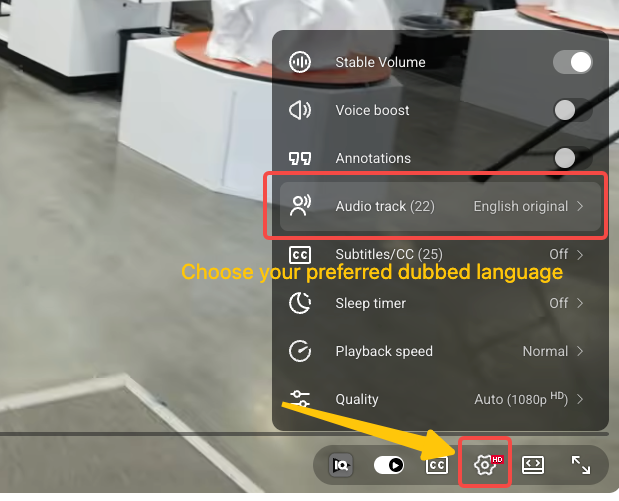
Switch back to the original audio track:
- Open the video
- Tap or click Settings
- Select Audio track
- Choose the original language
This is currently the fastest and most direct fix for viewers. The downside is that you may need to do it repeatedly, especially if YouTube keeps defaulting to dubbed audio on different videos.
Option 2: Set Language Preference for your youtube account:

Set preferred languages for your viewer account:
Click on profile picture > Settings > Playback and performance > Preferred languages.
Choose the languages you prefer in the preferred languages list. If a video’s original language is included there, YouTube is more likely to play the original audio instead of a dubbed track.
If you want YouTube to favor original audio more often, make sure the video’s original language is included in your preferred languages.
If You’re a Creator: How to Stop YouTube From Auto-Dubbing Your Videos
Option 1: Disable Auto-dubbing with Youtube Settings
If you’re a YouTuber and do not want YouTube to automatically generate dubbed tracks for your channel, you can disable the feature in YouTube Studio. 
Turn off automatic dubbing for your channel
- Open YouTube Studio
- Go to Settings
- Click Channel
- Open Advanced settings
- Uncheck Allow automatic dubbing
- Save your changes

If YouTube already auto-dubbed one of your video and you want to remove it. you could remove it following this step:
- Open YouTube Studio
- Go to Languages
- Select the video you want to edit
- Find the language in the Audio column
- Choose either:
- Unpublish — removes the dub from public view, but keeps it available to publish again later
- Delete — removes the auto-dub completely
Option 2: Upload your own high-quality dubbed audio
Although not always applicable, If you want to replace YouTube’s auto-dub with your own version that is higher quality and got it distributed to other parts of the audience, YouTube supports that through multi-language audio. But there is one important rule:
If an automatic dub already exists for that language, you must delete it first before uploading your own track.
Steps
- Open YouTube Studio
- Go to Languages
- Select the video
- If an auto-dub already exists in that language, delete it first
- Click Add Language and choose the target language
- Next to Dub, click Add
- Upload your audio-only file
- Click Publish when ready

A Better Alternative to YouTube Auto-Dubbing
Even though YouTube auto-dubbing is not perfect, it still creates real opportunities for global growth. It gives creators a low-friction way to reach international audiences, test demand in new languages, and make existing content more accessible without a large upfront localization cost. But for creators who need stronger quality control, more natural delivery, and better protection of their brand voice, auto-dubbing is often just the starting point.
Vozo helps creators produce more natural, higher-quality AI dubbing with better emotion preservation, stronger voice cloning, top-tier translation accuracy with glossary support, and more flexible accent control. It also includes a dedicated dub editor, giving you full control over the final result instead of forcing you to rely on a fully automatic output. It is a strong fit for creators who care about accuracy, brand voice, and viewer experience.
Try Vozo to create polished dubbed audio for your YouTube videos and replace auto-dubs with a result you can actually review and trust.
