

This feature is only available on the Studio plan and above.
Enable Proofreading
When creating a project, check Proofread before dubbing below the Start Translation button. Once translation is complete, the Proofreading Editor will open before dubbing begins.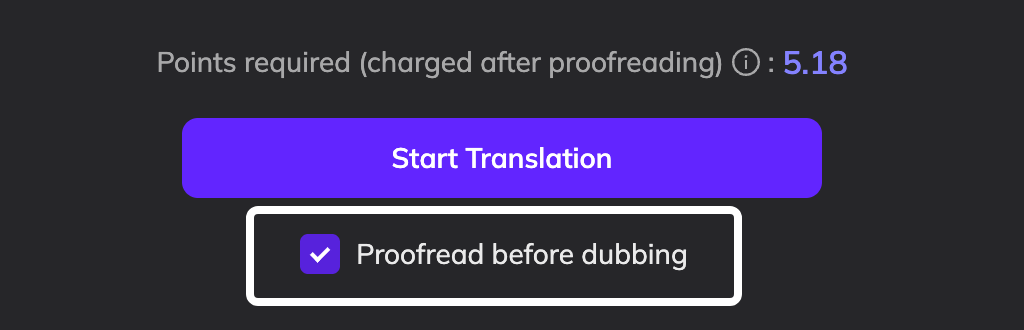
Review and Edit
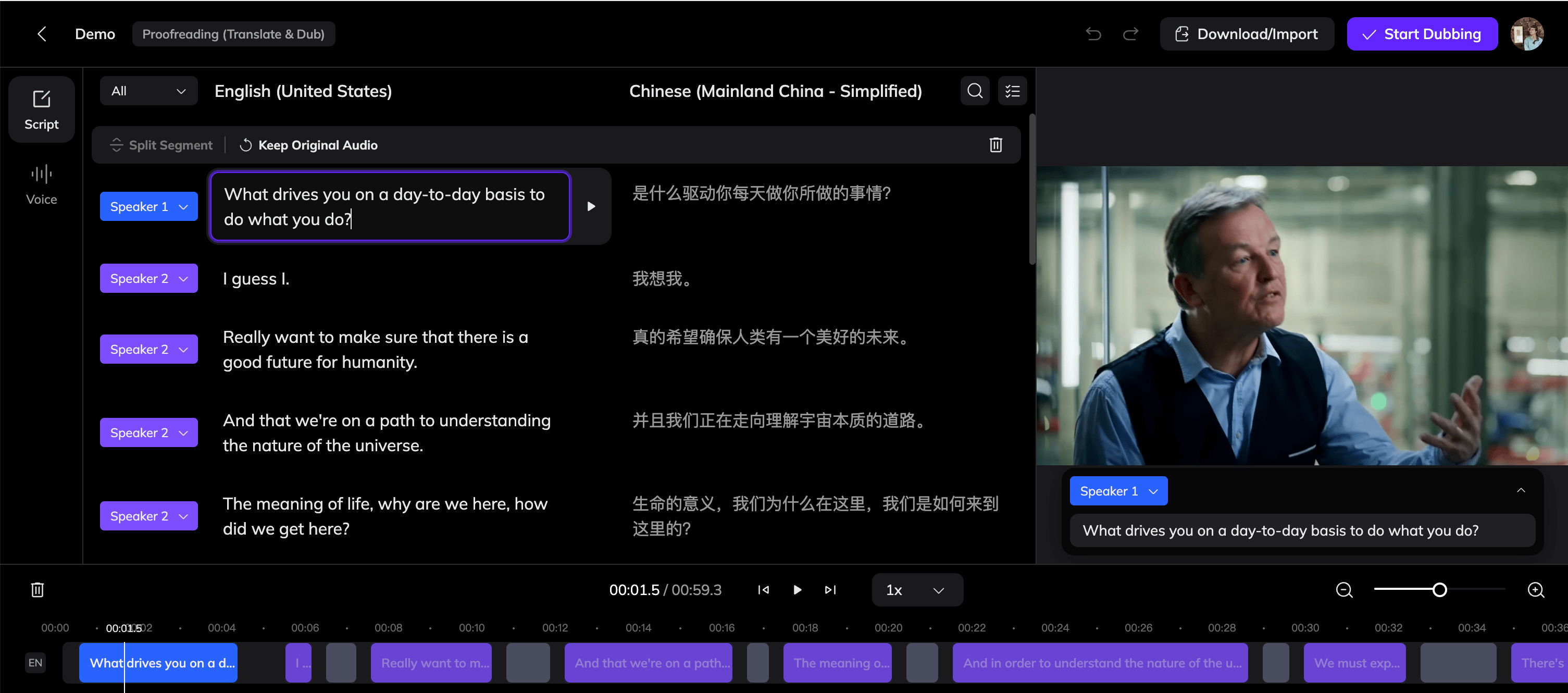
The editor displays your speakers, original text, and translated text side by side. You can:- Correct speaker labels and reassign segments to the right speaker
- Edit the original text to trigger a re-translation of that segment
- Edit the translated text directly without changing the original
Speed Up Your Review
The video panel on the right shows a popover overlaid on the video, displaying the original text recognized for that moment. You can play the video directly in this panel to quickly verify the content without switching between views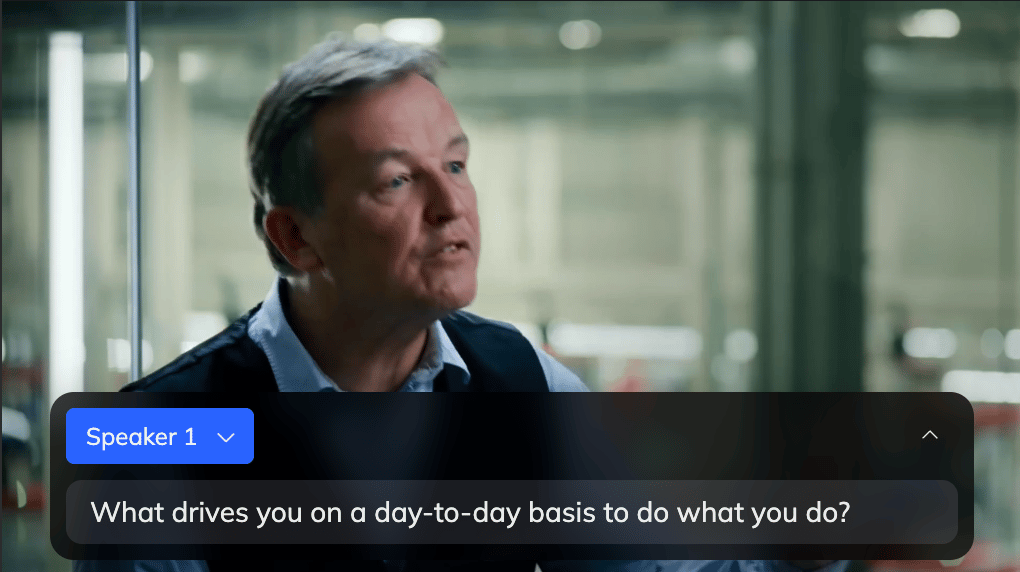
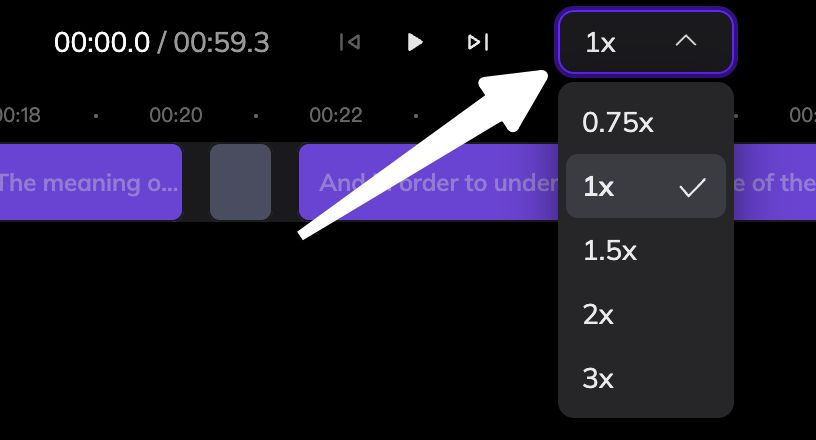
Assign Voices
Click the Voice tab on the left to review and update the voice assigned to each speaker. Each speaker’s voice can be changed to one of the following:- Clone voice from original speaker — clones the speaker’s voice directly from the original video
- Select from Voice Library — choose an AI voice or a previously saved cloned voice from your libr
