

When to Use This Feature
During the automatic translation process, some on-screen text may not be detected or translated. The Translate Missed Text feature allows you to manually select these missed areas so the system can detect the text, remove the original content, and generate translated text.How to Translate Missed Text
1
Click Translate Missed Text
Hover over the translated video area, then click the Translate Missed Text button in the top-right corner.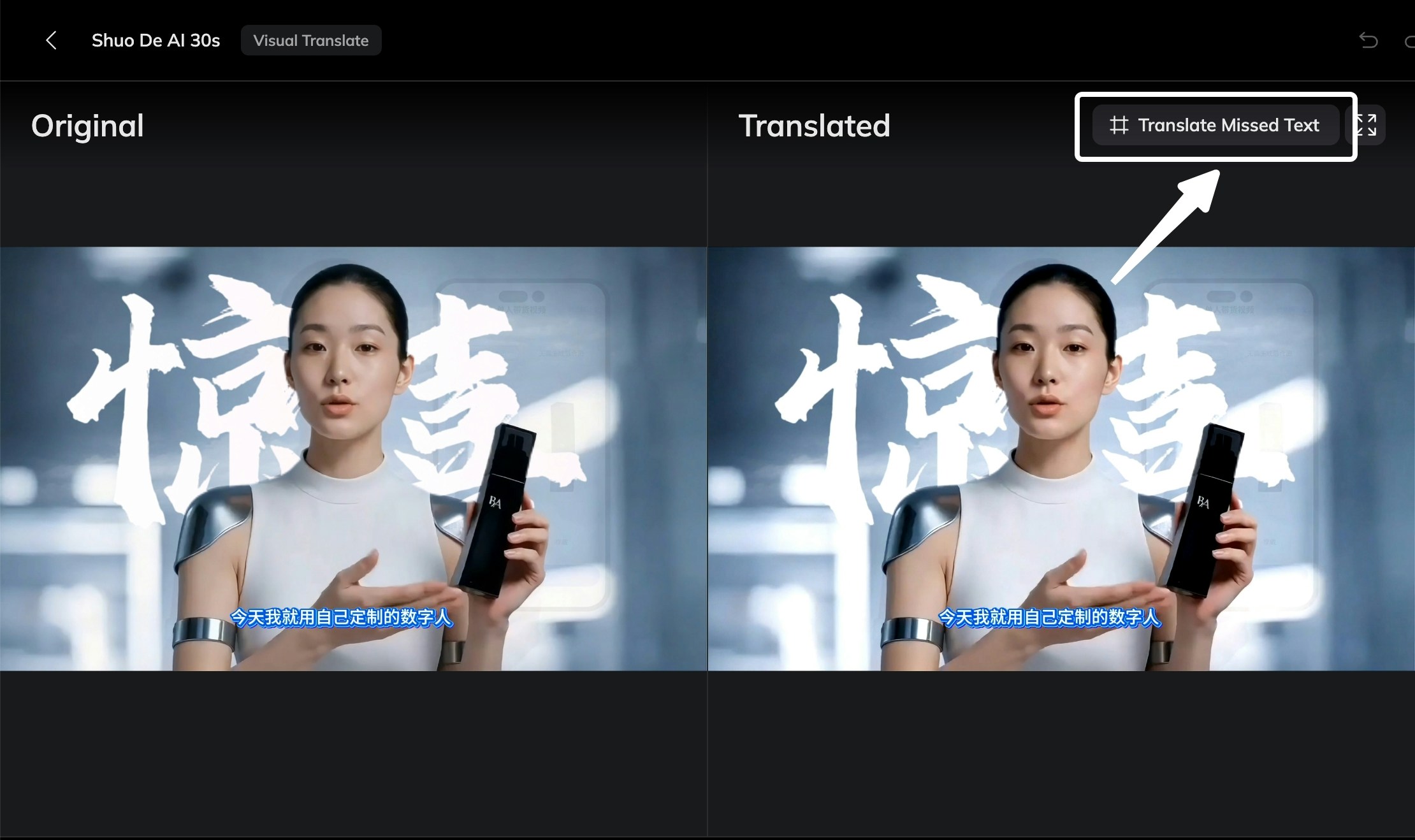
2
Select the Missed Text Area
A Frame will appear on the screen. Resize or move the frame to cover the text that was not detected during the initial translation. If multiple pieces of text were missed, you can include them within the same frame.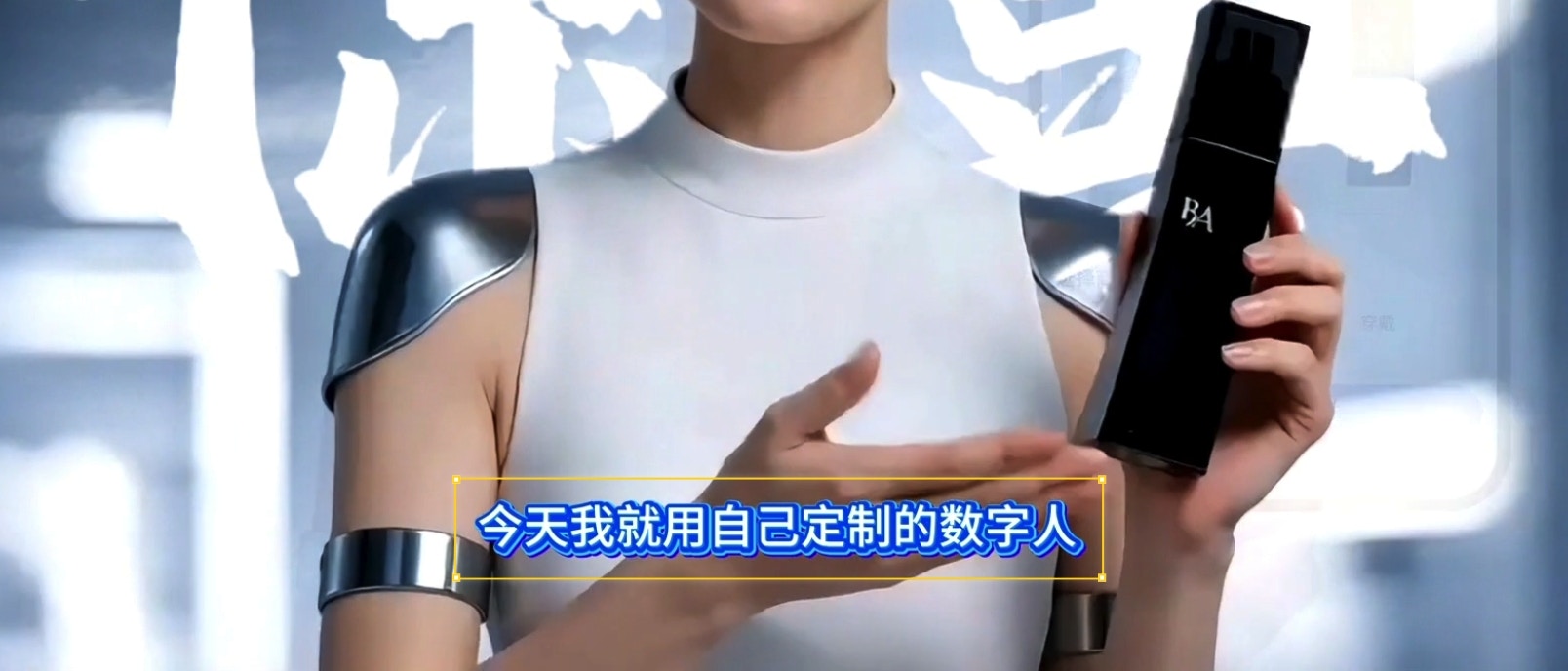
3
Confirm the Selection
Click Confirm Selection to submit the selected area. The system will start detecting text within the selected region.
4
Review the Detected Text
After detection is complete, the detected text will be highlighted with frames in the video. If some highlighted text should not be translated, select it and click Cancel this change to undo the selection.
5
Regenerate the Video
Once you have reviewed the entire video and confirmed all necessary areas, click Regenerate Video at the bottom of the editor, then wait for the video to be regenerated.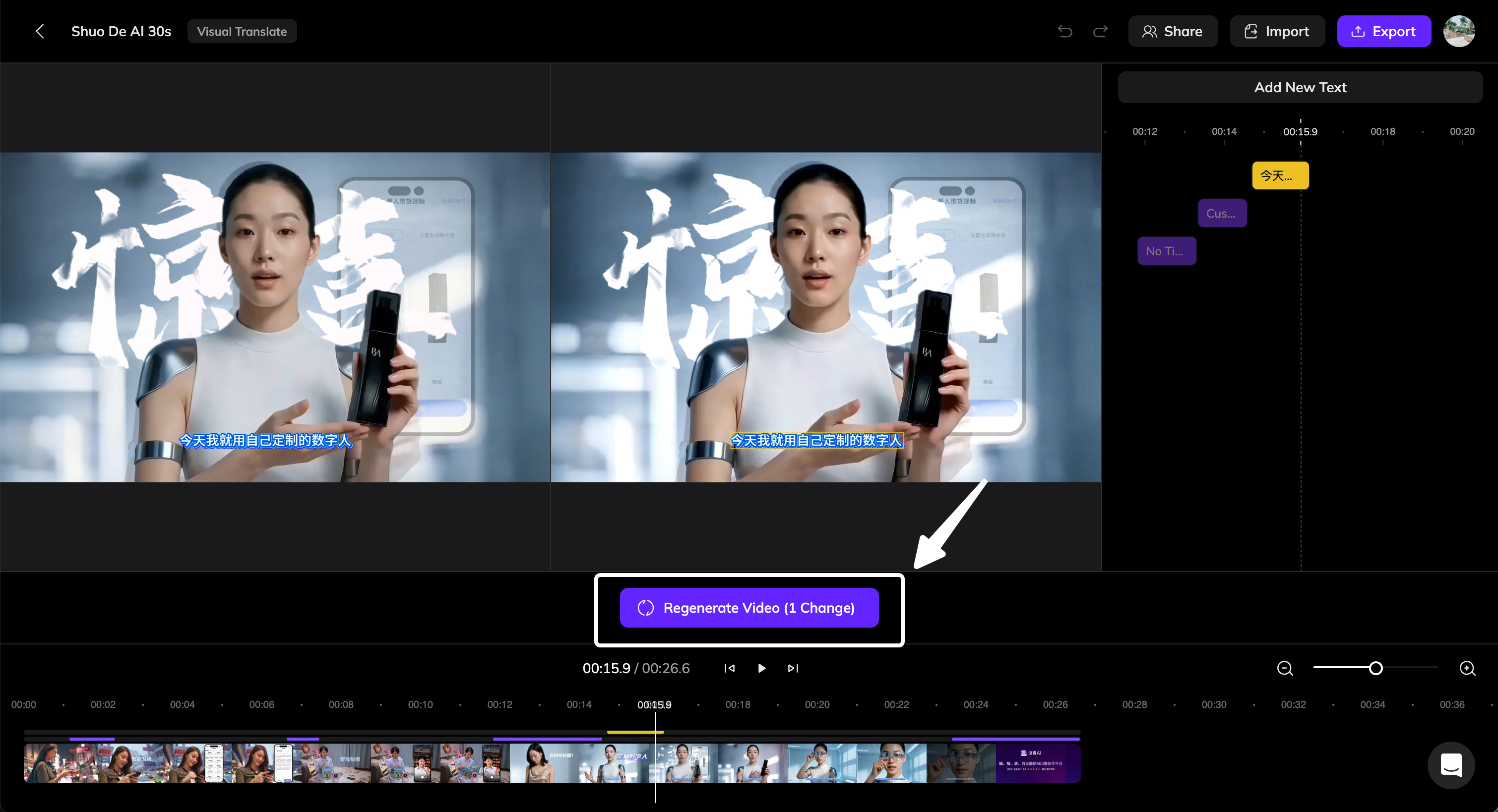
Final Result
After regeneration is complete:- The original on-screen text will be removed.
- The translated text will appear in the video.
- The translated text remains editable, allowing you to further refine the result if needed.