

Enable Simultaneous Speech
1
Open the Change Speaker dropdown
Click the speaker tag on a segment to open the Change Speaker dropdown.
2
Click the Simultaneous Speech icon
Click the Select Multiple Speakers for Simultaneous Speech icon in the top-right corner of the dropdown. A Multi-Speaker Segment dialog will appear.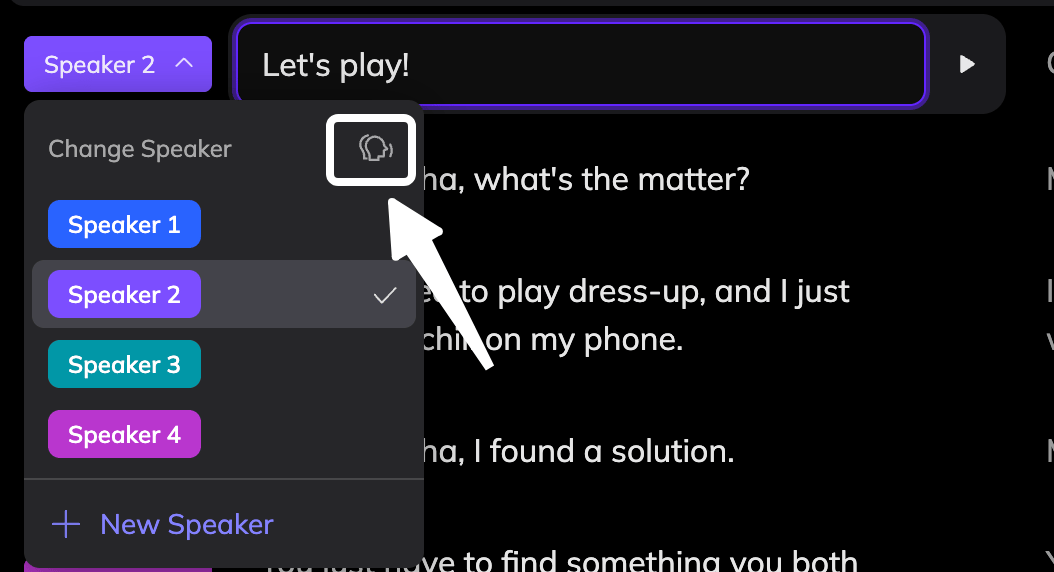
3
Select speakers
Check the speakers you want to include. Their voices will be merged into one audio clip when speech is generated.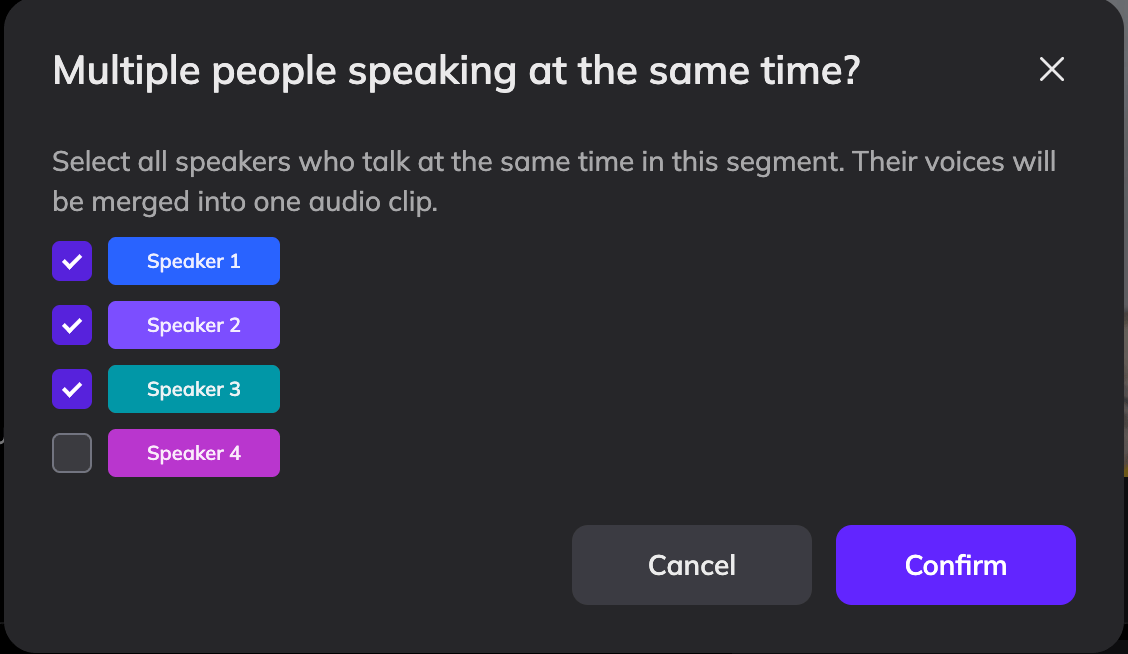
4
Confirm
Click Confirm. The speaker tag on the segment will update to show the number of selected speakers, and the segment will be highlighted to prompt you to generate speech.