

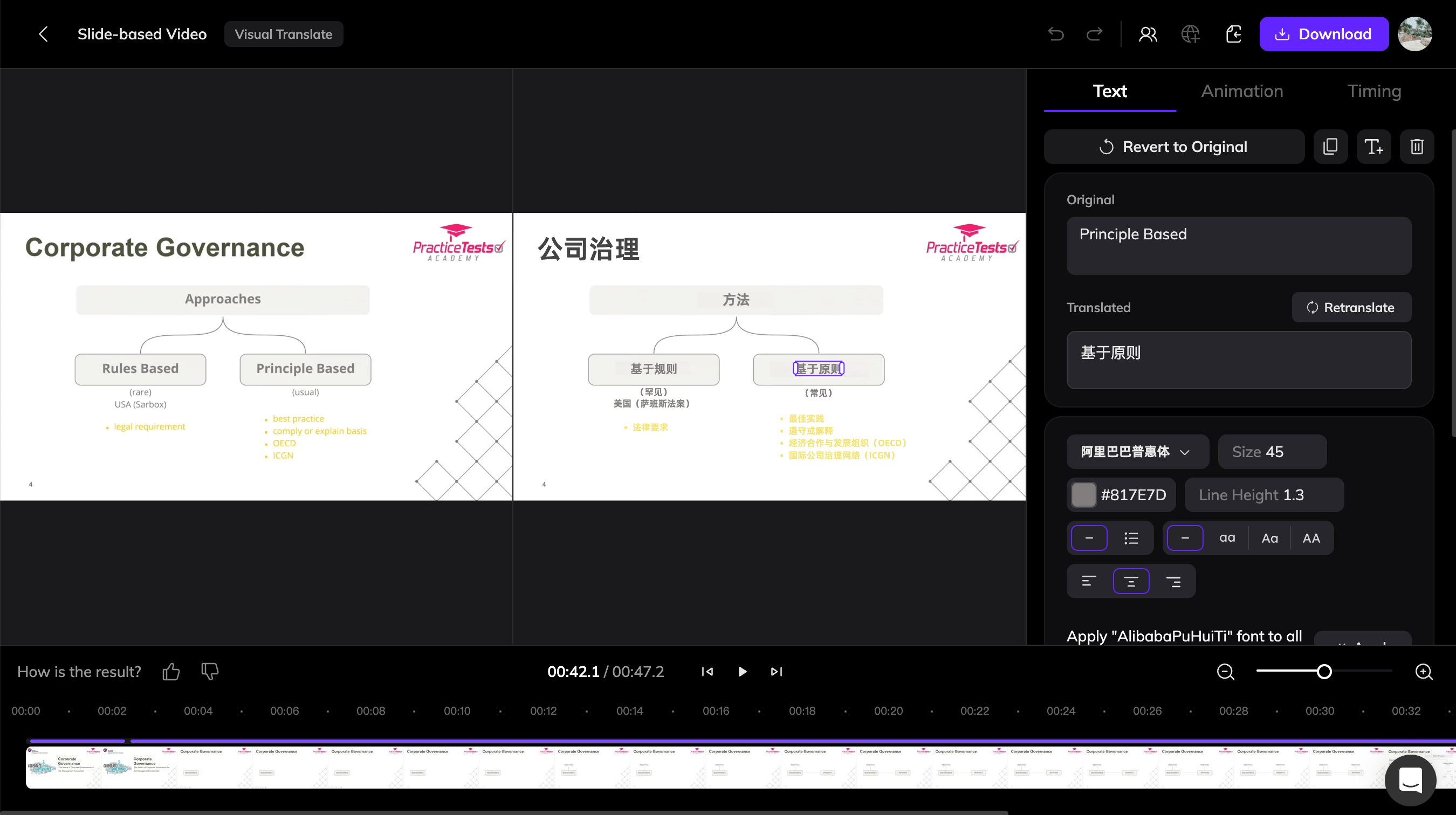
Visual Translate V1 Editor
Edit Text Content
Select any text element in the video. All edits are made in the right-side panel.- Edit text: edit the source text and click Retranslate, or edit the translated text directly.
- Adjust style and animation: change the font, size, color, and other styles, along with in/out animations, start time, duration, and layer order.
The V1 editor only lets you choose from preset entrance and exit animations. If your source video has complex animations and you are not satisfied with the result, generate the video again using V2 mode to recreate the original animations more accurately.
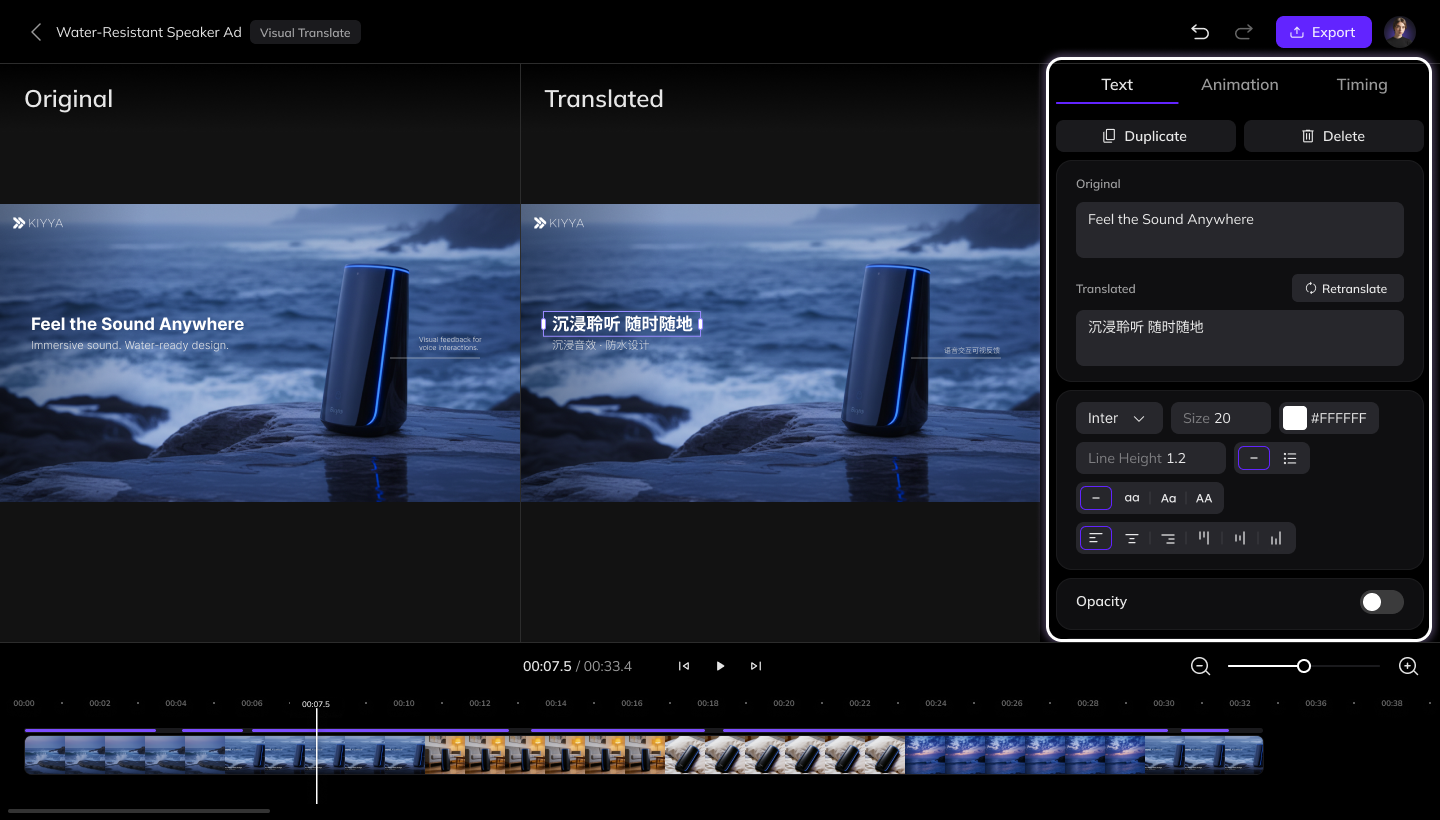
Editing panel on the right
Adjust Text Position
In the video preview, you can move or rotate text and adjust the text box width.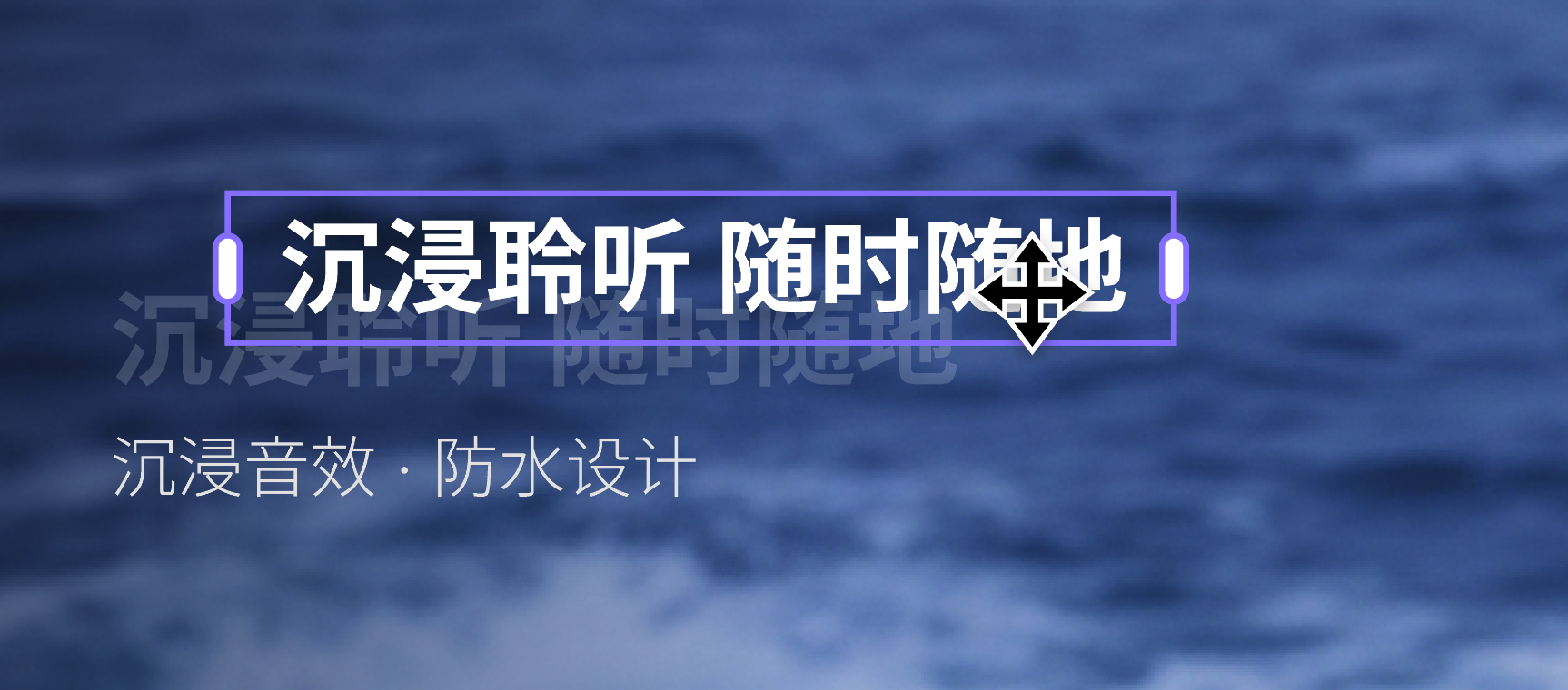
Translate Missed Text
If text was missed, select its area so the system can detect it, remove the original text, and translate it.1
Click Translate Missed Text
Hover over the translated video area, then click the Translate Missed Text button in the top-right corner.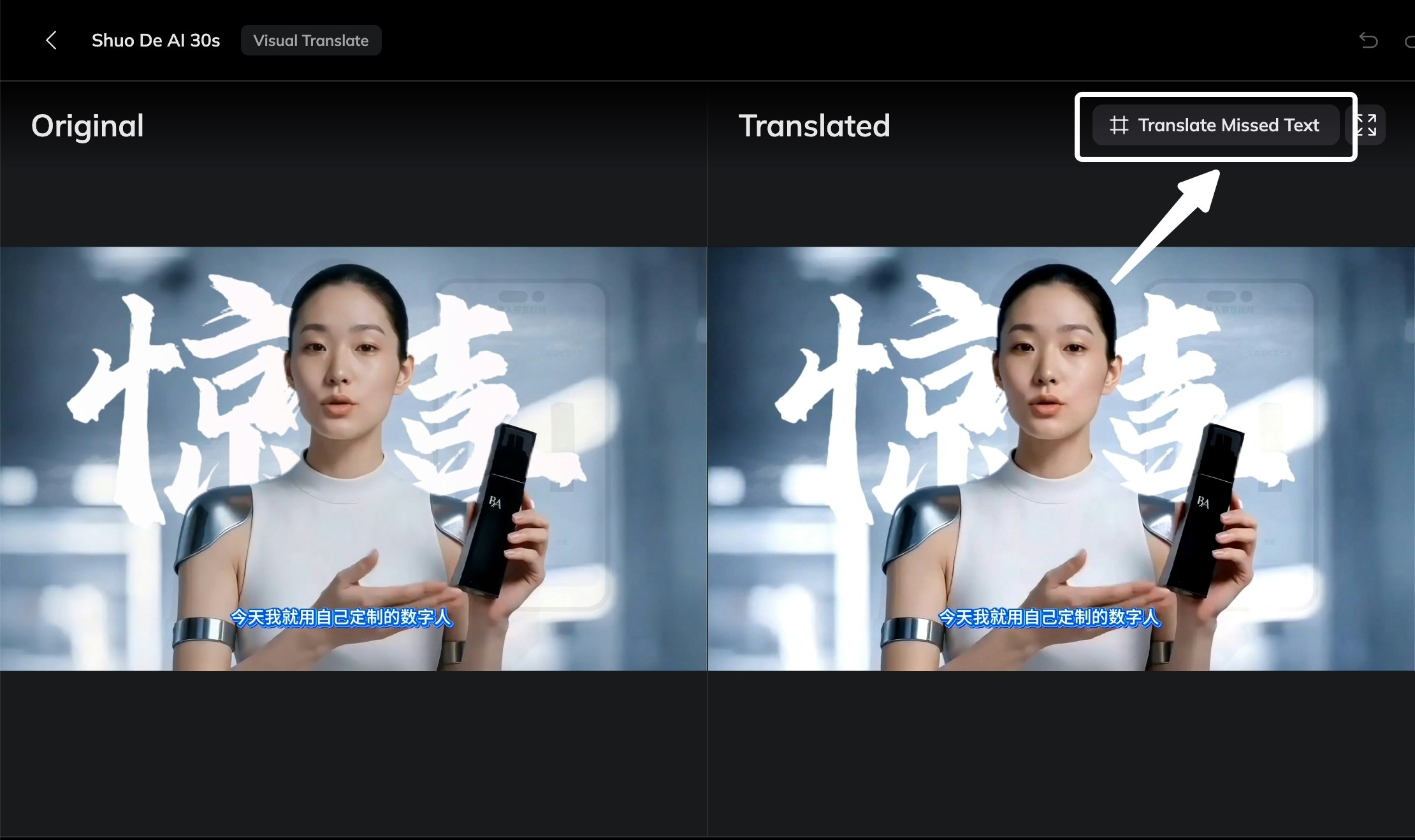
2
Select the Missed Text Area
A Frame will appear on the screen. Resize or move the frame to cover the text that was not detected during the initial translation. If multiple pieces of text were missed, you can include them within the same frame.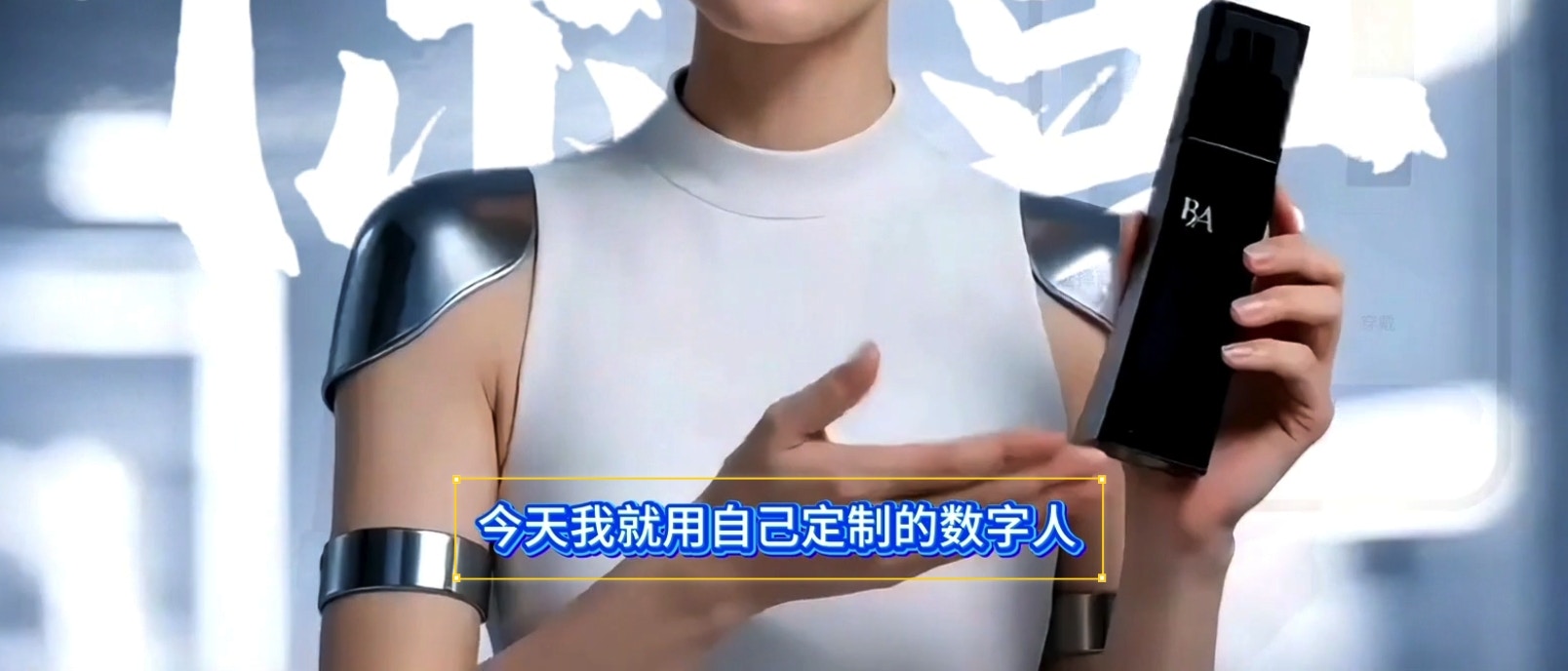
3
Confirm the Selection
Click Confirm Selection to submit the selected area. The system will start detecting text within the selected region.
4
Review the Detected Text
After detection is complete, the detected text will be highlighted with frames in the video. If some highlighted text should not be translated, select it and click Cancel this change to undo the selection.
5
Regenerate the Video
Once you have reviewed the entire video and confirmed all necessary areas, click Regenerate Video at the bottom of the editor, then wait for the video to be regenerated.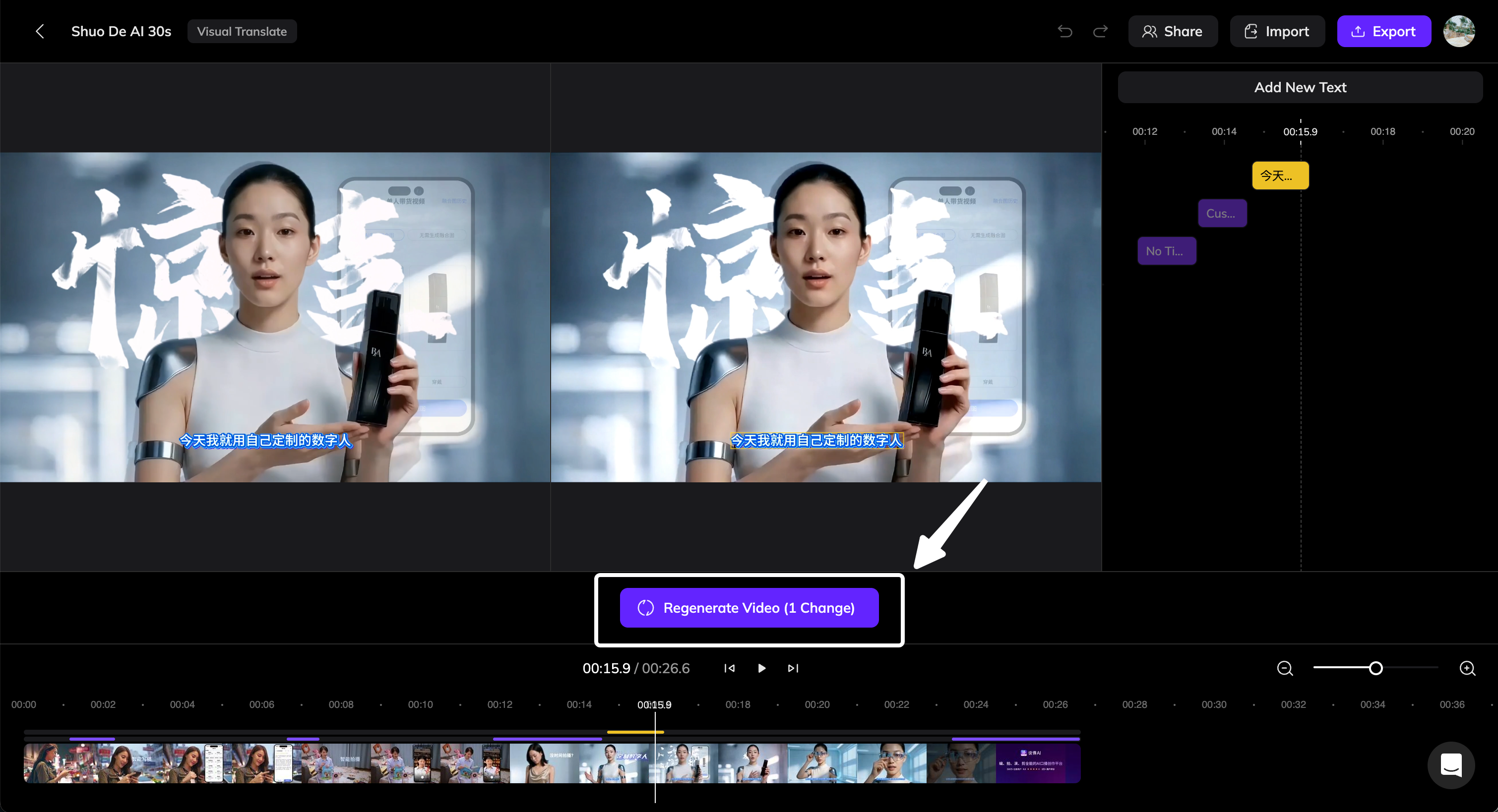
Restore Original Text
If text should stay in its original language, restore its original wording and style.1
Select the Text
In the translated video canvas, click the text that should be reverted.
2
Click the Revert to Original Button
In the right panel under the Text tab, click the Revert to Original button.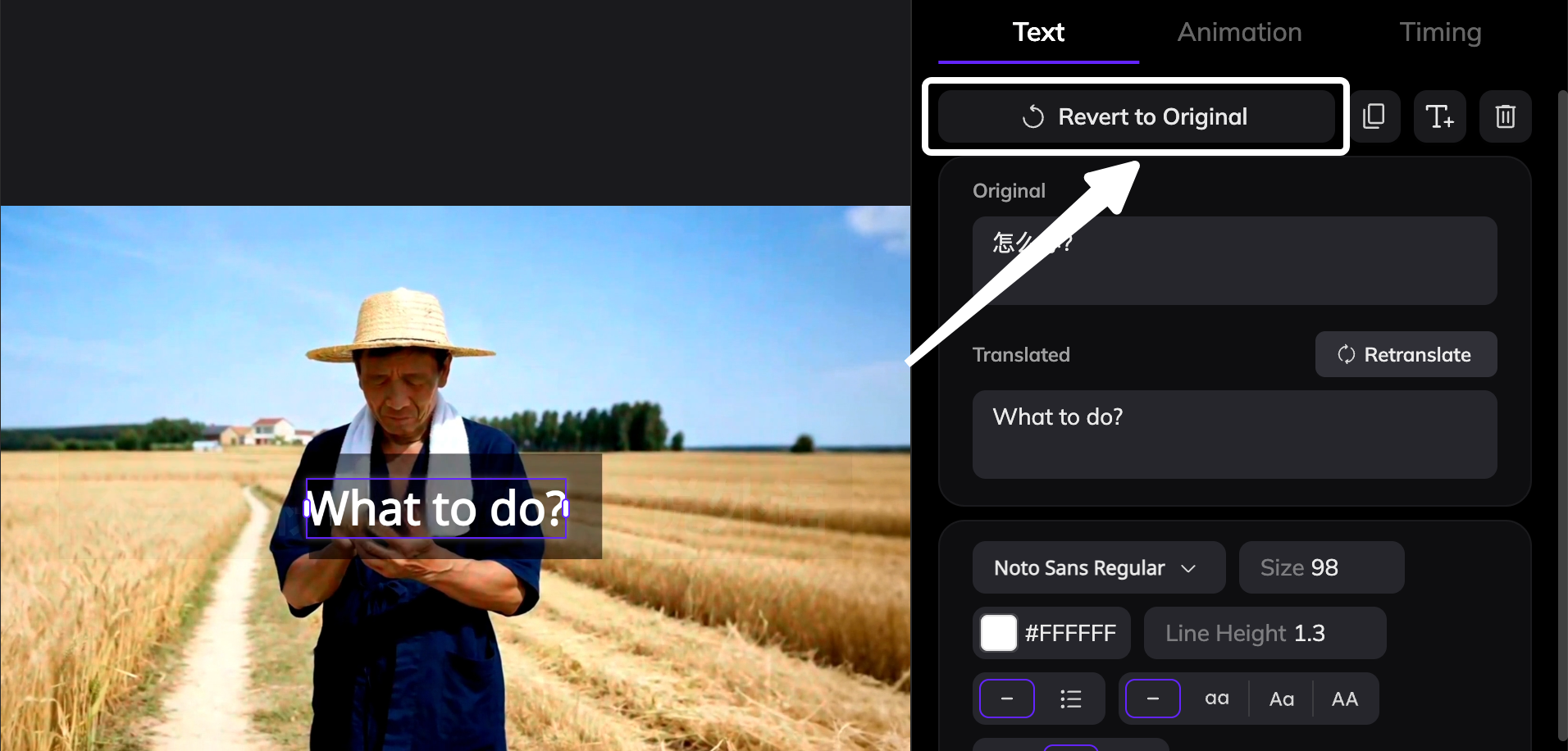
3
Confirm the Revert Area
After clicking the button, the selected area will be highlighted with a frame, indicating it has been marked to revert.
4
Regenerate the Video
After reviewing the entire video and marking all areas that should be reverted, click Regenerate Video at the bottom of the editor and wait for the video to finish regenerating.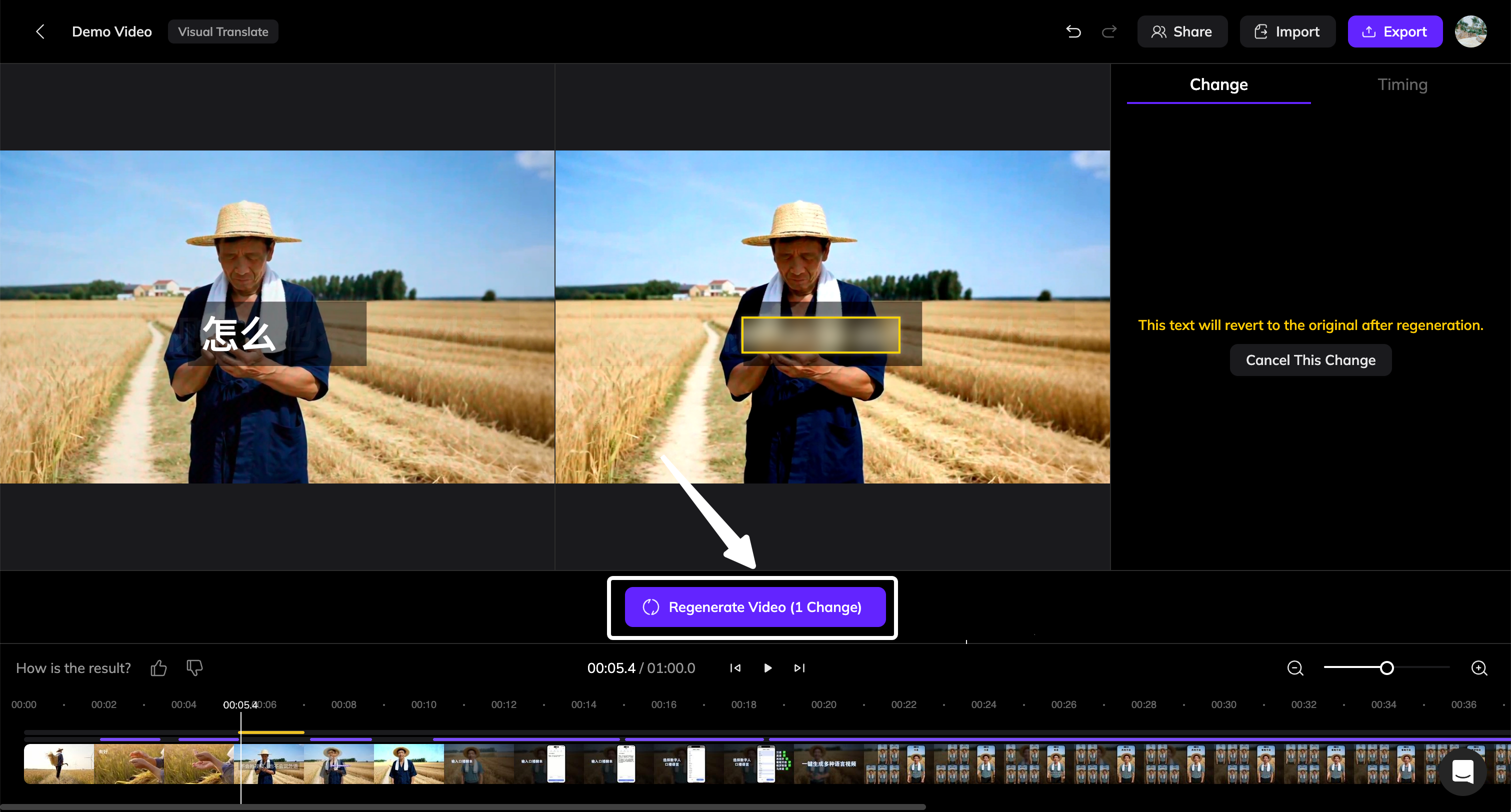
More Editing Options
Export and import a text file to review or update translations outside the editor.V1 uses the system’s default text removal result and does not support repeating text removal. If the generated result is unsatisfactory and cannot be fixed in the V1 editor, generate the video again using V2 mode.