

Translate and Dub the Video
Configure the Project
In Dashboard, open AI Translation - Translate & Dub. Upload the original video and select the target language.- If you need to remove original subtitles: Enable Add / Remove Subtitles and select Remove Original & Add New.
- If you need consistent course terminology: Vozo uses a large language model to understand the video’s context and translate it. If you still need control over how technical terms, product names, or abbreviations are translated and pronounced, first create a glossary and import or add the relevant entries. Then select that glossary in Advanced Settings when creating the translation project. See Glossary for instructions.
- If you want to review text before dubbing: Check Proofread before dubbing below the Start Translation button. You can then review and edit the text before clicking Start Dubbing when it is ready. (Even if you leave Proofread before dubbing unchecked, users on all plans can edit the original text and translation in the dubbing editor. Updating generated speech uses additional points.)
Glossary and Proofread before dubbing are available on the Studio plan and above.
Review and Edit
You can edit the original text, translation, and dubbing in the editor. See Edit Original Text and Translations for details.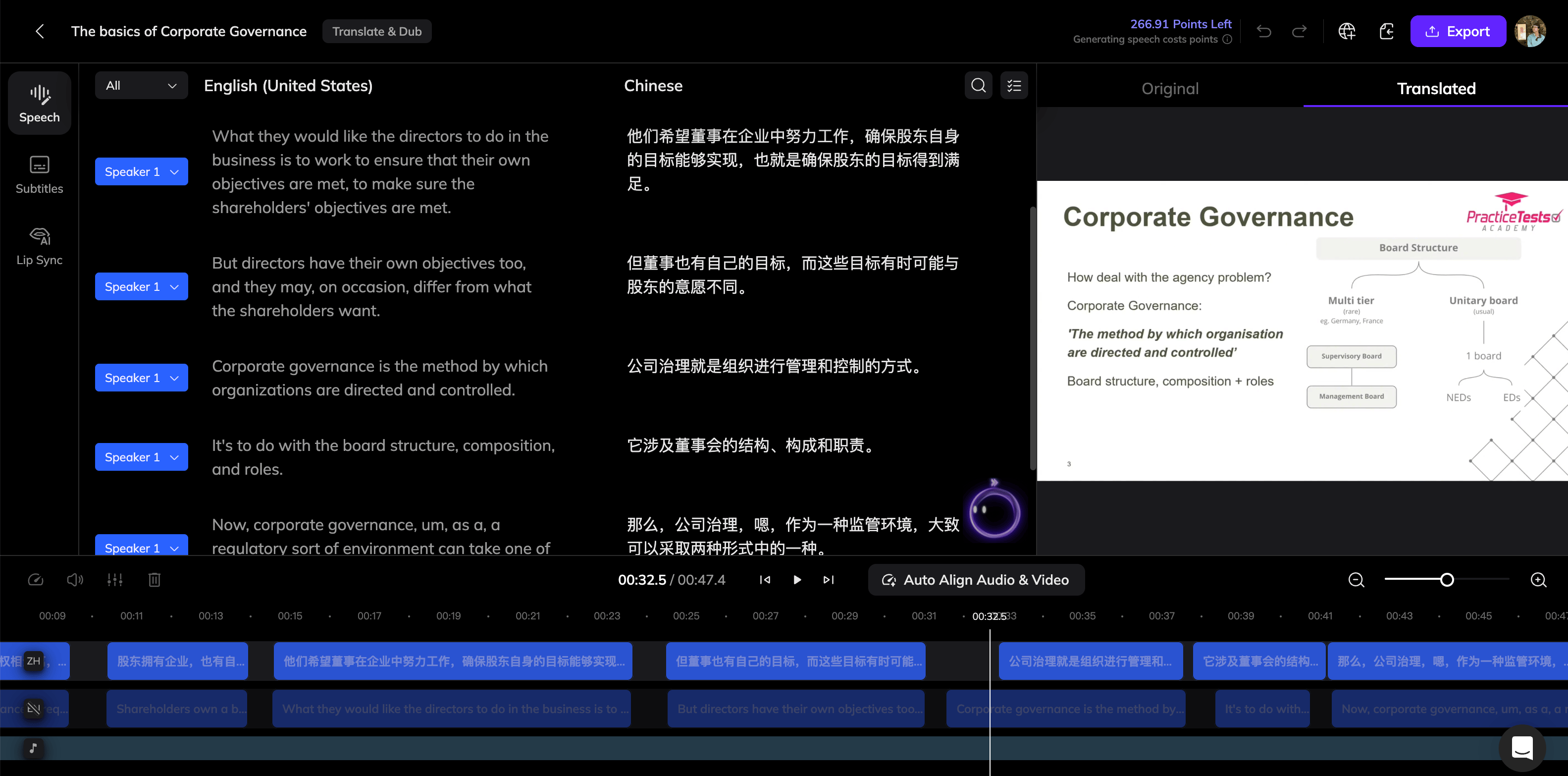
Lip Sync (Optional)
If the instructor appears on camera, use Lip Sync after finishing the dubbing to match their lip movements to the translated speech. You can skip this step for videos that only show slides or screen recordings without a visible speaker.Lip Sync uses additional points. See the point usage rules.
Visual Translate (Optional)
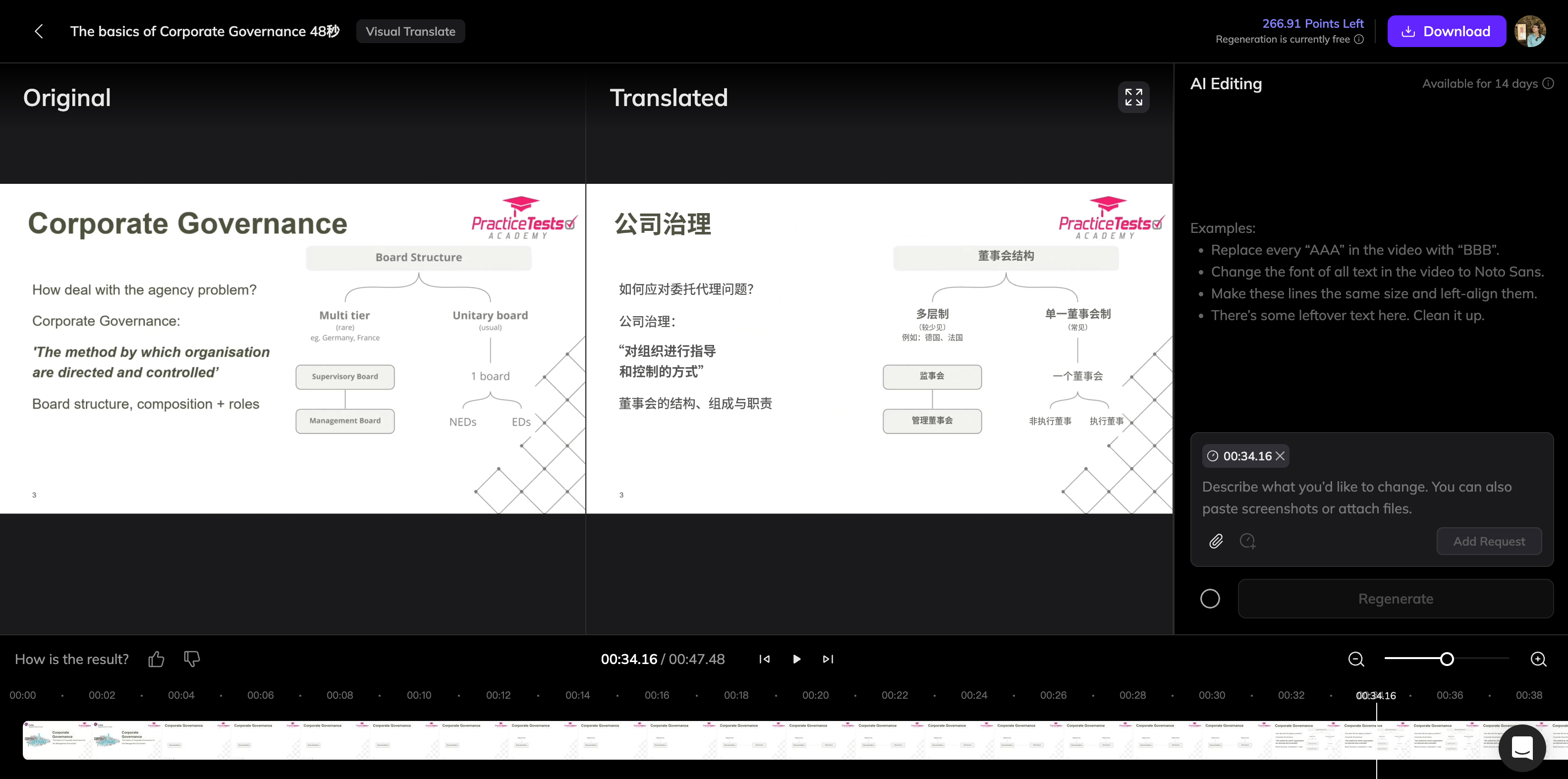
If the video contains on-screen text that learners need in their own language, such as slide content, diagrams, tables, or instructions, use Visual Translate after completing dubbing and optional Lip Sync. If there is no on-screen text to translate, you can skip this section.Visual Translate uses additional points. See the point usage rules.
- V1 for simple text: Suitable for static slide titles, fixed labels, simple layouts, and basic text transitions. It processes faster and uses fewer points.
- V2 for complex text: Better suited to tables, text-heavy layouts, and complex text animations. It takes longer and uses more points, with better results for these scenes.
FAQ
How are points charged for translating training videos?
How are points charged for translating training videos?
Points are charged for Translate & Dub, Lip Sync, and Visual Translate based on the features you use. See the point usage rules for details.
What if I do not have permission to use the original speaker's voice and need a different voice?
What if I do not have permission to use the original speaker's voice and need a different voice?
When creating a Translate & Dub project, open Voice Library under Voice Cloning/Choosing and select a different voice for the translated dubbing.
I have many videos. Can I process them in batches or automate the workflow?
I have many videos. Can I process them in batches or automate the workflow?
Vozo supports bulk uploading, API, and CLI. Choose the option that fits your workflow:
- Bulk uploading: Studio plans and above support uploading multiple files at once to create translation projects in batches. See Bulk Uploading.
- API: Suited to developers and users with a technical team who want to integrate video translation into their own product or workflow, automatically submit jobs, and retrieve results. See API Get Started.
- CLI: Suited to users who want an AI agent to handle videos automatically without writing code. Use natural-language requests to create projects in batches, check progress, and download results. See the Skills/CLI guide.